
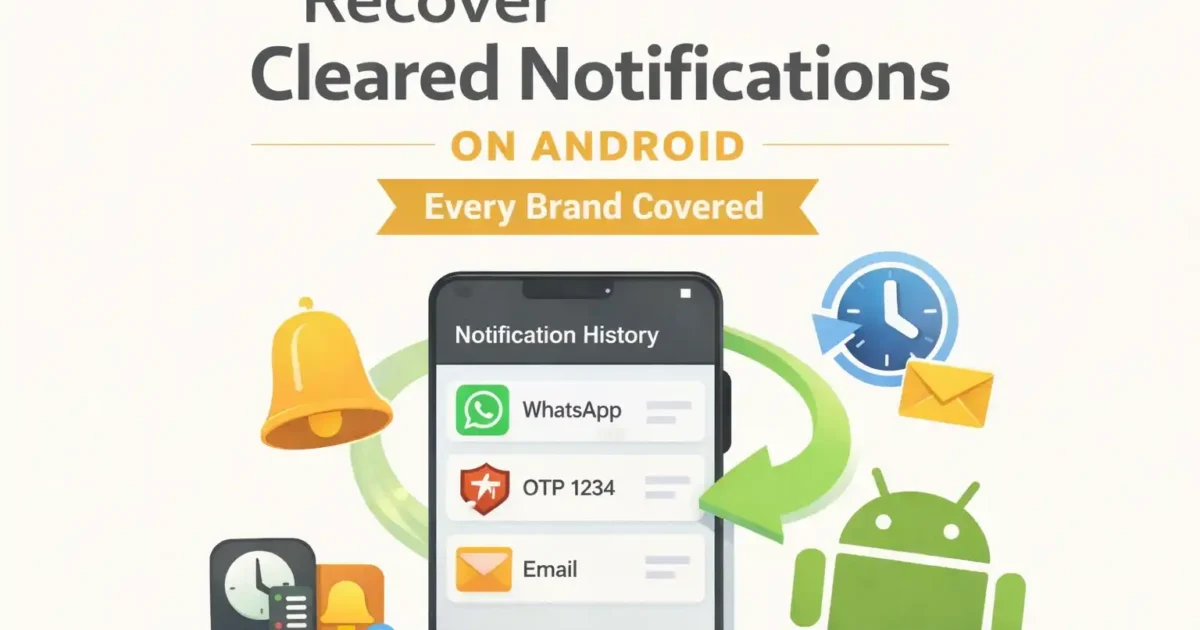

Do you know Android has a way to recover accidentally cleared notifications? Yes, But it comes with conditions. Some phones make it easy. Others hide the setting three menus deep. A few brands Xiaomi, Nothing, Tecno, Infinix don’t even offer it natively. This guide covers all of them, plainly, without the fluff.
Can You Actually Get Back a Cleared Notification?
Yes, Android 11 introduced a built-in notification history feature that saves your dismissed alerts for 24 hours. After that, they’re gone permanently. No backup, no recovery, no workaround.
But the harder truth is the feature only works if it was switched on before you cleared the notification. If you’re reading this after the fact and it wasn’t enabled, the built-in method won’t help. Don’t close this tab though the third-party app section further down is for exactly that situation.
Also worth knowing: apps with blocked notification permissions won’t appear in history. Neither will system-level alerts like “At a Glance” on Pixel phones. And if your phone restarted since the notification came in, that log may be wiped too.
How to View Notification History on Android (Enable This Now)
This is the first thing to do even if you don’t need it right now. The 60 seconds you spend enabling this could save you a headache six months from now.
On stock Android 11 and above, the path is straightforward:
- Open Settings.
- Tap Notifications.
- Select Notification History.
- Toggle it on. Done.
Once enabled, any notification you dismiss will be saved here for the next 24 hours. You can tap back into it anytime even after a full swipe-clear.
Samsung Galaxy (One UI) Recover Deleted Notifications
Samsung buries this setting slightly deeper than stock Android. On One UI 4 and later (Android 12+), go to Settings → Notifications → Advanced Settings → Notification History. Toggle it on. Your dismissed alerts from WhatsApp, Gmail, banking apps, anything will accumulate there.
Older Samsung devices on One UI 3 or Android 11 may show this under Settings → Apps → (three-dot menu) → Special Access → Notification History. If yours isn’t there, it’s likely a software version issue, update the device and check again.
Google Pixel View 24-Hour Notification Log After Accidental Dismiss
Pixel phones run stock Android, so the path is exactly the one described above. Settings → Notifications → Notification History. Clean and direct.
One important limitation specific to Pixel: the “At a Glance” widget notifications things like weather updates, calendar reminders, and commute alerts don’t get logged. Google’s own widget bypasses the history feature entirely. If the notification you’re looking for came from At a Glance, you won’t find it here.
Xiaomi, Redmi, POCO (MIUI 13+ and HyperOS) Notification History Recovery
Xiaomi is the awkward one. MIUI 12 and earlier simply don’t have native notification history; it’s not hidden, it’s not there. MIUI 13 added it, but the path varies by region and ROM version.
On MIUI 13 and HyperOS, try: Settings → Notifications & Control Center → Notification History. If you don’t see it, the fastest workaround is using Google Assistant, say “Open notification history” and it will deep-link directly into the log if the feature exists on your device.
HyperOS users on some Redmi and POCO models have reported the toggle is missing entirely. Xiaomi hasn’t addressed this publicly. For those devices, the third-party logger apps in Section 5 are your only real option.
OnePlus (OxygenOS) Retrieve Dismissed Notifications
OnePlus made the path a bit non-obvious. Go to Settings → Notifications & Status Bar → More Settings → Notification History. Enable the toggle. After that, swiped-away notifications appear in a log you can check anytime within 24 hours.
Nothing Phone (Nothing OS) Notification Log Access
Nothing OS sits close to stock Android, so the path mirrors Pixel. Settings → Notifications → Notification History. Toggle on. Nothing Phone 1, 2, and 2a all support this. The interface is clean and the log is easy to read, one of the better implementations actually.
Motorola Get Back Accidentally Cleared Notifications
Motorola devices running near-stock Android follow the standard path: Settings → Notifications → Notification History. The Motorola doesn’t add much skin on top of Android, so this one is consistent across Moto G, Moto Edge, and the G Power lineup.
Tecno, Infinix, and HMD Nokia When Notification History Doesn’t Exist
This is where things get frustrating. Tecno’s HiOS and Infinix’s XOS both popular across South Asia, Africa, and Southeast Asia, don’t reliably implement native notification history. You’ll search for the setting and come up empty. HMD’s Nokia devices vary: newer ones running Android One or near-stock builds have it, older ones don’t.
For these devices, skip straight to the third-party apps section below. That’s the practical path.
Notification History Is Blank Why This Happens
You turned on notification history. You went to check it. Nothing’s there. This is the second wave of frustration that hits people and it has a few distinct causes.
The most common: you enabled the feature after the notification was already cleared. Android doesn’t backfill. It only logs from the moment you switch it on going forward. If the OTP or message came in at 9am and you turned on history at 10am, it’s not in the log.
Other reasons the log shows are empty: the app that sent the notification had its permission blocked, the 24-hour window already closed, or the phone restarted after the notification arrived. Some heavily skinned phones also clear the log on reboot Xiaomi MIUI is known for this.
If you see the history screen but it shows “No recent notifications” for a specific app, check Settings → Apps → [App Name] → Notifications and confirm the app is actually allowed to send alerts.
Recover Specific Notifications: WhatsApp, Bank OTP, Email
Sometimes the notification is just a pointer and you can get to the content another way.
WhatsApp: Open the app. Any unread message will still be there in the chat. The notification being cleared doesn’t delete the message. If the chat also seems gone, check the Archived Chats folder people accidentally archive more than they realize.
Bank OTP or transaction alert: The OTP itself is almost certainly expired by the time you’re reading this anyway most banks set a 30-second to 3-minute window. Don’t try to recover it. Just request a new one. For the transaction alert specifically, open your banking app and check the transaction history or notification inbox inside the app. Most Indian and South Asian banks (HDFC, SBI, Kotak, Paytm) have an in-app notification centre.
Email: The notification is a preview. The actual email is sitting in your inbox. Open Gmail or your email app, check the inbox and the “All Mail” folder. If you also accidentally archived or deleted the email, check Trash Gmail holds deleted emails for 30 days.
Best Apps to Recover Cleared Notifications on Android
These apps exist for two situations: your device doesn’t have built-in notification history, or the 24-hour window passed before you checked. The trade-off is that they only log notifications received after you install them so they’re more useful as a preventive install than a rescue.
NotiSaver Free on Google Play. Logs every notification with timestamp, app name, and full text. Supports app-level filtering so you can exclude spam. Works on Tecno, Infinix, Xiaomi, and devices without native history. Ads in the free version, but nothing intrusive.
Notification History Log Simpler interface, no ads. Good for users who want something lightweight. Doesn’t have filtering but gets the job done on most Android 8+ devices.
Both require notification access permission and grant it during setup. Neither sends your notification data to external servers according to their Play Store privacy declarations, but read the permission screen yourself before installing.
Three Things to Do Right Now So This Never Happens Again
This section is worth more than the rest of the article combined if you act on it.
1. Enable notification history today. Whichever path applies to your device from the brand sections above go do it now, before you close this tab. It takes under a minute and is invisible in normal use.
2. Install NotiSaver as a backup logger. Especially if you’re on Xiaomi, Tecno, or Infinix where the native feature is unreliable. Run both in parallel built-in history where it works, the app as a safety net.3. For critical alerts banking, work email goes to the source directly. The notification is a reminder. The actual information lives in the app. Build the habit of checking the app rather than depending on the notification panel.

No comments yet. Be the first to share your thoughts!