
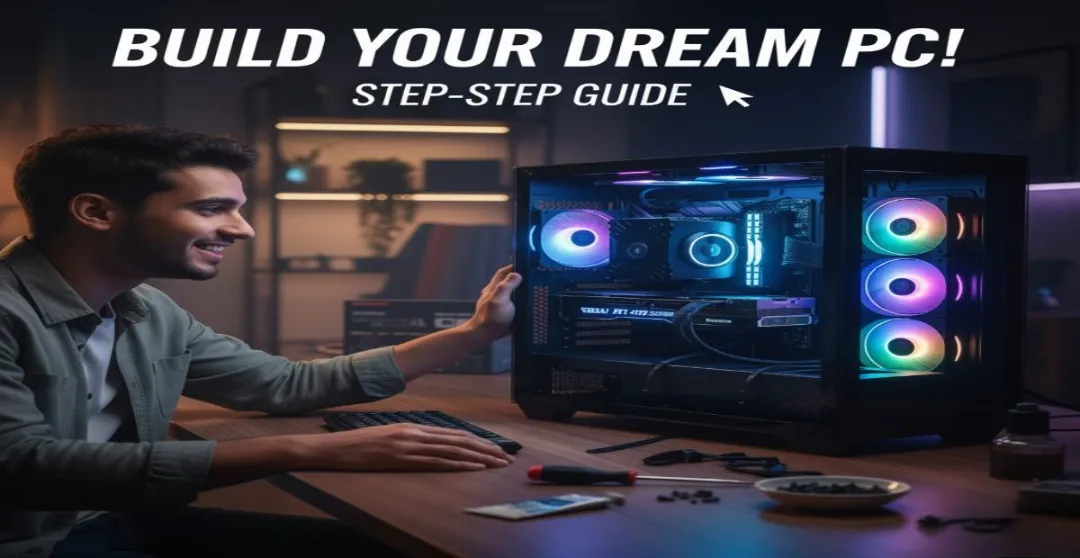

Building your first PC can feel like the ultimate technical challenge. Maybe you’re worried it’s too complex, that you’ll buy the wrong part, or that the process will eat up your entire weekend. We understand! The truth is, assembling a modern computer is an incredibly straightforward and rewarding project. You don’t need an engineering degree; you just need a clear plan.
In this guide you will learn how to build a PC from start to end. We begin with deciding which components will satisfy your needs, breaking down all the necessary hardware and guiding you through each step of the actual assembly process.
Why Build Your Own PC in 2025?
IIf you’ve been thinking about learning how to build your own PC, you’ve probably spent a few nights on YouTube wondering if it’s worth the headache. A pile of parts, a bunch of weird cables, and the constant fear of breaking something that costs more than your rent yeah, I get it.
But here’s the truth: building a PC isn’t as scary as it looks. It’s actually kind of fun — once you get past the initial panic. And when that screen finally lights up for the first time, there’s a rush that no prebuilt machine can give you.
It makes even more sense to build your own PC. You can build something that perfectly fits your needs, no compromises and can be more cost-effective than buying a prebuilt PC. Building it yourself gives you control over every aspect, including performance, noise, aesthetics, and even the color of your fans, if that’s important to you. This is true if you’re interested in gaming, editing, coding, or just want a reliable system for daily use.
Most importantly, learning how to build a PC teaches you how your machine actually works — knowledge that will save you money and frustration for years.
What Hardware You Actually Need to Build Your Own PC?
Honestly at first, learning how to build a PC can sound intimidating. But it is one of the most rewarding things you can do if you love tech or simply want more power for your money. It is not about just knowing what components to buy but it is actually about understanding what component actually does, how they all connect, and what makes sense for your specific needs and budget. Forget the jargon; let’s go step-by-step through what you really need, and what you can skip without regret.
CPU (Processor)
The CPU knows as your PC’s brain it handles all the logic, math, and instructions that make everything else work. Every app, game, or program you run depends on the CPU to process information. But here’s the thing: not everyone needs the “fastest” brain out there.
In 2025, you can’t go wrong with a midrange chip like AMD’s Ryzen 5 8600G or Intel’s Core i5-14600K. They’re incredibly capable, efficient, and can handle everything from gaming to everyday productivity tasks. If you’re building mostly for gaming, don’t overspend here; your GPU will do most of the heavy lifting for graphics. On the other hand, if you do heavy multitasking or complex programming, investing in a stronger CPU absolutely pays off.
Pro tip: Always make sure the motherboard you’re purchasing is compatible with AMD and Intel. Since AMD and Intel use various socket types, the motherboard you require will depend on the CPU you choose.
Motherboard
The motherboard is the main circuit board that connects everything together — think of it as the central nervous system of your PC. It decides what parts you can use and how easily your system can be upgraded later.
When choosing one, look for compatibility with your CPU’s socket (AMD uses AM5, Intel uses LGA1700 right now). Also pay attention to size: ATX, Micro-ATX, and Mini-ITX are the common standards. A full-size ATX board gives you more room for extra features and ports, while Mini-ITX boards are great for compact builds.
If you’re new to building, choose a well-reviewed motherboard with built-in Wi-Fi and Bluetooth — it saves you from buying extra adapters later. And remember: the motherboard doesn’t just hold parts together; it determines your PC’s stability, upgrade potential, and overall reliability.
RAM (Memory)
RAM is your PC’s short-term memory — it’s what keeps everything running smoothly when you have multiple apps or browser tabs open. It temporarily stores the data your system is actively working on, which means more RAM = smoother performance.
In 2025, 32GB of DDR5 RAM is the sweet spot for most people. It’s fast, affordable, and future-proof. If you’re building on a budget or mostly browsing, 16GB still works perfectly fine — just make sure you buy two sticks (dual-channel setup) instead of one. That small choice alone can make your system noticeably faster.
And one last thing: not all motherboards support DDR5, so always double-check compatibility before you hit “add to cart.”
Storage
Storage is where all your games, files, photos, and videos live. A few years ago, hard drives (HDDs) were the standard — big, cheap, and slow. But now, SSDs (solid-state drives) are the go-to choice. They’re quiet, shock-resistant, and much faster.
Go for an NVMe SSD if your motherboard supports it. They plug directly into your motherboard and offer lightning-fast load times — we’re talking seconds, not minutes. A 1TB NVMe SSD is a great starting point for most users, giving you enough room for the OS, apps, and a good number of games.
If you want extra storage for media files or backups, you can always add a secondary HDD later. That’s the beauty of a custom PC — it grows with you.
GPU (Graphics Card)
Here’s the part everyone talks about — the GPU, or graphics card. It’s what makes your games look incredible and your video edits render faster. If you’re into gaming, 3D design, or any creative work, this is where most of your budget will go.
For 1440p or light 4K gaming in 2025, cards like the NVIDIA RTX 4070 Super or AMD RX 7900 XT are excellent picks. They deliver smooth performance without completely draining your wallet. If you’re building mostly for everyday work or casual use, you can skip the GPU altogether — newer CPUs like the Ryzen 5 8600G have solid integrated graphics that can handle basic tasks and even light gaming.
Just make sure your case and power supply can handle the GPU’s size and power requirements — these cards can get pretty big (and hungry).
Power Supply (PSU)
The power supply is the unsung hero of every PC build. It takes electricity from your wall outlet and safely delivers it to every component. A cheap or underpowered PSU can cause crashes, overheating, or even hardware damage — so this is not the place to cut corners.
Look for an 80+ Gold certified PSU from a trusted brand like Corsair, EVGA, or Seasonic. It means the unit is efficient and reliable. For most modern builds, 650W to 850W is a safe range. If you’re running a high-end GPU or multiple drives, aim toward the higher end.
Spend a few extra bucks here — a solid PSU will last you through multiple future builds.
Case
Your case isn’t just a box that holds everything; it’s what defines the look, feel, and cooling potential of your PC. Choose a case that fits your motherboard size (ATX, Micro-ATX, Mini-ITX) and has good airflow — that’s far more important than flashy RGB lights.
In 2025, mesh-front cases are the standard because they let in more air, keeping your system cool and quiet. If you want RGB fans or tempered glass panels, go for it — it’s your build, your style. Just make sure it’s functional first.
Building a PC is half art, half engineering — and your case is where those two meet.
Cooling
Keeping your PC cool is critical. Overheating can throttle performance and reduce component lifespan. Most CPUs come with a stock cooler that’s fine for casual use, but aftermarket coolers are quieter and perform much better.
You can choose between air coolers (big fan + heatsink) and liquid coolers (pump + radiator). Air coolers are simpler, cheaper, and reliable. Liquid coolers look cleaner, perform better for overclocking, but need more maintenance.
And here’s a small but crucial reminder: don’t forget the thermal paste. Seriously. You’d be surprised how many people forget it and then wonder why their CPU is running hot. I once did — and my CPU hit 90°C before I realized the mistake.
Operating System
Finally, you’ll need an operating system — the software that makes your PC usable. Windows 11 is still the go-to for most people because of its compatibility with games and apps, but Linux has become a fantastic option if you like open-source flexibility or coding.
Once your PC is assembled, you can install your OS from a USB stick. Windows licenses can be bought online, while Linux distributions like Ubuntu are completely free. Either way, this is the final step before you power on your new build and start exploring what you just created with your own hands.
Budgeting: Spend Smart, Not More
Here’s a general idea for 2025:
- $800–$1,000 – Great 1080p gaming and general use.
- $1,200–$1,800 – Strong 1440p or creative work build.
- $2,000+ – 4K gaming or heavy workstation tasks.
A few tips that’ll save you money and regret:
- Balance your parts — no $100 CPU with a $900 GPU.
- Check compatibility on PCPartPicker before buying anything.
- Avoid going “too cheap” on key components like PSU or motherboard — they’re the backbone.
Building a PC isn’t about chasing the best parts — it’s about building your machine.
Tools & Setup: What You’ll Actually Need
Before you start, clear your workspace. You’ll need:
- A Phillips screwdriver (#2)
- Thermal paste (if your cooler doesn’t have it pre-applied)
- A bowl for screws (trust me, they’ll roll off otherwise)
- Zip ties for cable management
- A non-carpeted surface
- Patience
Touch metal like your case or PSU before handling parts to discharge static. You don’t need a fancy anti-static strap, just be cautious.
And do yourself a favor: keep your phone handy. You’ll be Googling things like “why won’t my motherboard power on” at least once.
How to Build a PC: Step-by-Step Assembly Guide
Take a deep breath. Building a PC isn’t a test of perfection — it’s about patience, curiosity, and following simple steps carefully. Once you’re done, that first power-on moment feels incredible.
Step 1: Prepare the PC case
Open your case and remove both side panels. Keep the screws in a bowl or magnetic tray (they love disappearing).
Check that the small brass standoffs — the little metal risers that keep your motherboard from touching the case — are installed in the right spots.
Why this matters: Standoffs prevent short circuits. No one wants their shiny new motherboard fried before it even boots.
Step 2: Install the CPU
Find the CPU socket on your motherboard — it’s the square metal area with a lever or latch. Lift it up and look for the tiny golden triangle on both the CPU and socket. Align them perfectly, and gently lower the chip in.
Never push down — if it doesn’t drop in smoothly, check alignment again.
Pro tip: Always hold the CPU by the edges. Touching the top or pins can cause invisible damage or oil marks that affect contact.
Step 3: Thermal Paste and Cooler
Apply a pea-sized dot of thermal paste in the center of the CPU. Place your cooler evenly on top and tighten its screws in a cross pattern — not too tight.
Why it matters: The paste helps transfer heat from the CPU to the cooler. Too much paste traps heat; too little leaves gaps.
And yes — skipping paste entirely is how you turn your CPU into a miniature furnace.
Step 4: Add RAM
Find the long RAM slots, open the side clips, and align the notch on your RAM stick with the ridge in the slot. Press down firmly until you hear a solid click.
Don’t panic: It’ll feel like you’re about to break something. You’re not — that click means a good connection.
Step 5: Mount the Motherboard
Lower your motherboard gently into the case, aligning it with the standoffs you checked earlier.
Tighten the screws just snugly — firm, but not forced.
Tip: Start with the center screw first to anchor the board, then work your way out.
Step 6: Install Storage
If you’ve got an NVMe SSD, slide it into the slot at a slight angle and screw it down carefully (those tiny screws love escaping).
For SATA SSDs or hard drives, mount them in their respective drive bays and connect the SATA data and power cables.
Why this matters: Proper mounting keeps vibrations down and ensures stable performance — especially for mechanical drives.
Step 7: Add the GPU
Remove the appropriate slot covers at the back of the case, line up your graphics card with the top PCIe slot, and press it in until it clicks. Secure it with screws and connect its power cables from the PSU.
Quick check: Your GPU should sit level. If it’s slightly tilted, it might not be fully seated.
Step 8: Connect Power Cables
This part looks messy, but it’s just matching plugs to ports:
- 24-pin cable → motherboard
- 8-pin (or 4+4) → CPU power
- PCIe cables → GPU
- SATA → drives
Why it matters: A single loose cable can cause your PC not to boot — so double-check every connection before moving on.
Step 9: Cable Management
Flip the case and route cables behind the back panel if possible. Use zip ties or Velcro straps to keep things clean.
Future you will thank present you: A tidy build runs cooler, is easier to upgrade, and just looks satisfying.
Step 10: Final Check
Before you hit the power button, go over everything:
- CPU cooler cable connected?
- RAM fully seated?
- GPU power in place?
- PSU switch flipped to “I”?
Now, plug in your monitor, keyboard, and mouse — and press that power button. If all goes well, your PC fans will spin, and you’ll see that first BIOS screen light up. That’s your victory moment.
The First Boot: The Moment of Truth
Press the power button. If the fans spin, and you see the BIOS screen — congratulations, you’ve done it!
If not, don’t panic. 90% of “failed boots” are just a loose connection or RAM not seated properly.
Once you’re in BIOS, check temps (under 40°C idle is good). Then:
- Plug in your USB with Windows 11 or Linux installer.
- Install your OS.
- Update all drivers (motherboard, GPU, chipset).
- Run a benchmark or stress test. Watch temps, listen for odd noises.
If something feels off, shut it down and check connections. Troubleshooting is part of the learning — it’s not failure.
Common Mistakes (I’ve Made Them All)
- Forgetting motherboard standoffs → short circuit city.
- Plugging fans into wrong headers → CPU overheats instantly.
- Over-tightening screws → cracked boards or stripped threads.
- Forgetting thermal paste → CPU becomes a space heater.
- Poor cable management → airflow disaster.
Don’t beat yourself up if you mess up once or twice. Every builder has a story of a time they forgot something obvious and learned the hard way.
Troubleshooting Common PC Build Issues
If your PC doesn’t start:
- Check the PSU switch (yes, really).
- Reseat your RAM and GPU.
- Ensure front panel connectors are properly attached.
- Try booting with one RAM stick.
- Check your motherboard’s debug lights or beep codes.
Still no luck? Walk away for a few minutes. Fresh eyes solve 80% of build issues.
That First Successful Boot
There’s nothing like it. The fans spin, the lights glow, and your monitor flickers to life — you built that. You didn’t just save money. You gained confidence, control, and a new hobby that’s oddly therapeutic. Not only that, but you’ll start noticing airflow patterns, RGB setups, and you’ll be the “tech friend” everyone calls next time they need help.
Building a PC is empowering. It teaches you that technology isn’t magic — it’s parts and patience. So don’t let fear stop you. Get your parts, take your time, make your mistakes. Because that moment when your system finally boots and the BIOS screen pops up? That’s pure joy. And yeah — remember the thermal paste. Always.
Final Thoughts: Why Learning How to Build a PC Is Worth It
Building your own PC isn’t just about saving money — it’s about truly understanding your technology. It’s empowering, creative, and surprisingly fun once you know how to build a PC the right way.
And when that BIOS screen finally lights up for the first time, you’ll realize something special: you didn’t just put together random parts — you built a system that’s completely yours.

No comments yet. Be the first to share your thoughts!