
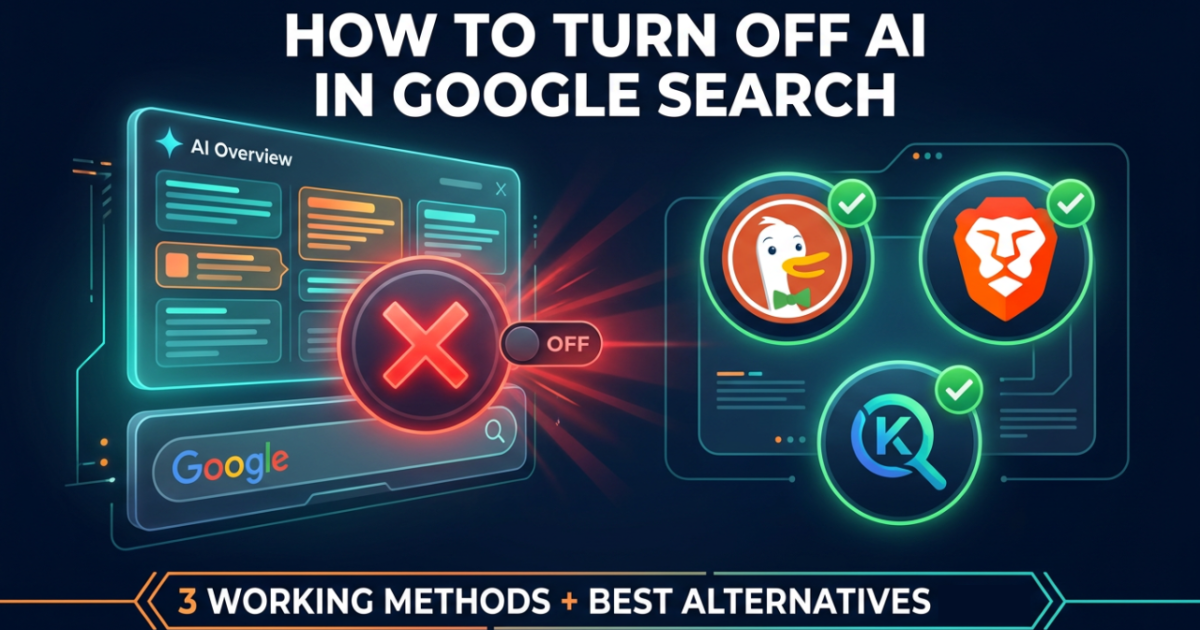

If you want to disable AI Overviews on Google, you’re not alone — and you’re not stuck with them. Google flipped this on in 2024 without asking anyone, and there’s no official off switch. But there are three working methods right now that actually remove the AI clutter from your search results. This guide walks through all of them, fast.
Why Google Search Feels Different Now
Google didn’t roll this out gradually or give users a choice. One day in 2024, AI Overviews just appeared — sitting at the very top of search results, summarizing everything before you could even scroll to a real link.
For millions of people in the US, that was the moment Google stopped feeling like a search engine and started feeling like a lecture.
Reddit blew up. Tech forums filled with complaints. And yet Google kept pushing.
What Are AI Overviews and Why Are They So Annoying?
The concept sounds fine: pull info from multiple sites, stitch it into one answer. Save time. But the reality? Vague summaries. Outdated information. Answers that are sometimes embarrassingly wrong.
You might remember the glue-on-pizza incident. Google’s AI confidently told users to add glue to pizza sauce to stop cheese from sliding — pulled from a satirical Reddit post and served as fact. That wasn’t an isolated bug. It was a symptom.
And beyond accuracy, there’s the layout problem. AI Overviews eat up enormous screen real estate. On mobile especially, you’re scrolling past a wall of AI text before you see a single actual link. That’s not a search. That’s an obstacle.
Can You Fully Disable AI Overviews on Google?
Straight answer: no, not through any official Google setting. There’s no account toggle, no Chrome setting, no built-in switch.
Google quietly pulled the opt-out from Search Labs for most users in early 2026. Some accounts still show the Labs beaker icon in the top-right corner of search results — if yours does, check whether an AI Overviews toggle is still available. But most users are locked out of that option now. What does exist are workarounds — and they work well.
How to Disable AI Overviews on Google: 3 Methods That Work
Ranked fastest to most permanent. Pick the one that fits how you use Google.
| Method | Permanence | Setup Time | Best For |
| 1. Web Tab Filter | Temporary (resets each search) | 1 second | Quick, one-off clean searches |
| 2. The &udm=14 URL trick | Permanent | 2 minutes | Power users who want pure Google results |
| 3. Chrome Extension | Permanent | 30 seconds | Set-and-forget desktop users |
Method 1: Use the Web Tab to Stop AI in Google Search
Zero setup. No extensions. Works on any device, any browser.
After searching anything on Google, look at the filter tabs directly below the search bar. You’ll see All, Images, News, Videos, Shopping — and one labeled Web.
Click it.
Google strips the AI summary instantly and loads the classic ten blue links. Every time, without fail.
The only downside: it resets with each new search. You’ll have to click Web again next time. Takes one second once it becomes habit — but if you want a permanent fix, the next method handles that.
Method 2: The &udm=14 Trick to Turn Off Google AI Mode
This is the cleanest long-term solution for anyone who still wants to use Google but without the AI layer on top. It’s also incredibly useful if you run a website — more on that below.
How the URL parameter works:
When you search Google, the URL looks like this: https://www.google.com/search?q=your+search
Add &udm=14 to the end and press enter: https://www.google.com/search?q=your+search&udm=14
Pure web results. No AI. No summaries. Just links.
Making it permanent — the bulletproof setup:
- Open Chrome and go to Settings
- Click Search engine in the left sidebar
- Select Manage search engines and site search
- Scroll down to the Site search section and click Add
- Fill in the fields:
- Name: Google No AI
- Shortcut: gw
- URL: https://www.google.com/search?q=%s&udm=14
- Click Add to save
- Find your new entry in the list, click the three dots next to it, and select Make default
That last step is the one most guides skip — and why readers get stuck. The extension won’t apply until you explicitly set it as default through that three-dot menu. Once you do, every search from Chrome’s address bar loads AI-free results automatically. Done once, works forever.
Note for website owners and creators: This trick is more useful than you might think. AI Overviews suppress traditional organic results and distort where your site actually appears. Running searches through &udm=14 shows you clean organic rankings without the AI layer — giving you accurate data for SEO tracking, content gap analysis, and competitor research. If you manage a site, this should be part of your workflow.
Method 3: Chrome Extension to Get Rid of AI Overviews for Good
Don’t want to touch URLs or settings at all? An extension is your answer.
Open the Chrome Web Store and search “hide Google AI overviews.” You’ll find several free options — extensions like Hide AI Overviews or uBlacklist can remove the AI box completely, every search, automatically.
Install. Done. You never think about it again.
One important thing: check the permissions before installing any extension. A legitimate one only needs access to Google search result pages — nothing more. If an extension requests access to your full browsing history, passwords, or data across all sites, don’t install it. Move on to the next option in the search results.
Best Search Engines Without AI Overviews (2026)
Maybe the workarounds feel like too much maintenance. Maybe you’re genuinely done with Google. Both are reasonable conclusions.
These alternatives give you fast, clean, traditional search results — no AI summaries shoved in your face.
DuckDuckGo vs Google: Which Is Better Without AI?
DuckDuckGo is the most-used Google alternative in the US, and it earns that position. No tracking. No behavioral profile built on you. So No AI Overviews by default.
Search quality is solid for the vast majority of everyday queries. Where it falls slightly short is hyperlocal results and Google-specific integrations like Maps. But for general searching — news, how-tos, product research, anything that doesn’t require Google’s local data — DuckDuckGo keeps up easily.
If privacy matters to you and you want to search without AI summaries forced on you, this is the easiest switch you’ll make.
Kagi, Startpage, and Brave: Best Private Search Engines 2026
Kagi is the premium pick. $5/month, no ads, no tracking, and search quality that genuinely rivals — and sometimes beats — what Google used to be. The free trial is worth running for a week before you decide. People who switch rarely go back.
Startpage takes a different angle entirely. It uses Google’s actual search index but strips out the tracking and the AI clutter. So you get Google-quality results without Google knowing anything about you. Completely free. If you want Google results without Google’s problems, Startpage is the move.
Brave Search runs its own independent index — not relying on Google or Bing at all. No tracking, growing rapidly, and totally free. There’s an optional AI summary feature built in, but it’s clearly marked and easy to skip. You won’t accidentally end up in AI Overview territory here.
How to Set DuckDuckGo as Your Default Search Engine
Switching takes less than two minutes on any browser. Here’s how Americans do it across the most common setups.
On Chrome (Desktop and Mobile)
Desktop:
- Open Chrome → Settings
- Click Search engine in the left sidebar
- Under “Search engine used in the address bar,” select DuckDuckGo
Mobile — iPhone or Android:
- Open Chrome → tap the three dots (bottom right on iPhone, top right on Android)
- Settings → Search Engine
- Select DuckDuckGo
On Safari and Firefox
Safari (iPhone or Mac): Settings → Safari → Search Engine → DuckDuckGo. Three taps. That’s the whole process.
Firefox: Settings → Search → Default Search Engine → DuckDuckGo. Takes about fifteen seconds.

No comments yet. Be the first to share your thoughts!