
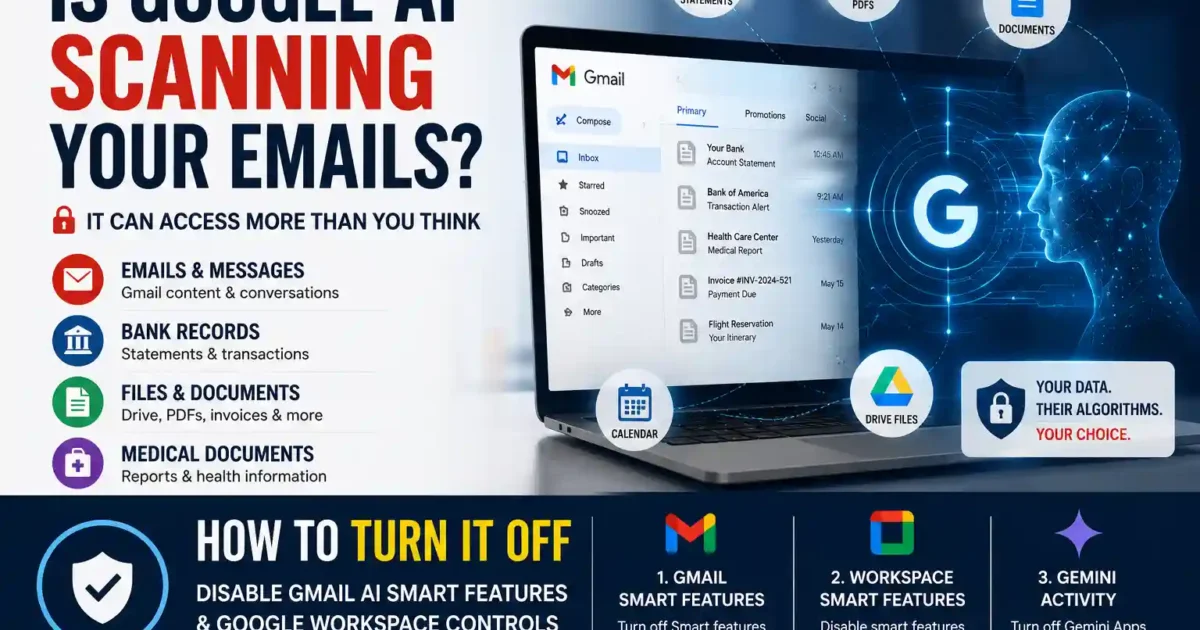

Google splits Gmail AI controls across separate settings screens. Turning off one switch does not disable everything and finding all the right places to turn off Gmail AI smart features takes more steps than Google makes obvious. To reduce Gmail’s AI-assisted behavior, you usually need to change the Gmail smart-features setting, the Google Workspace smart-features setting, and Gemini activity controls separately. Workspace admins and managed accounts can add another layer of control on top of that. That is the actual scope of opting out. Most guides stop at step one.
How to Turn Off Gmail AI Smart Features: The Main Toggle
Google documents separate smart feature controls across Gmail and Workspace, and each works independently from the others.
- Smart features in Gmail, Chat, and Meet — controls use of your Gmail, Chat, and Meet data to provide smart features within those products.
- Smart features in Google Workspace — controls use of your Workspace data to provide smart features across Workspace products (Calendar, Drive, and so on). Google explicitly notes this setting does not affect the Gmail/Chat/Meet setting above.
- Smart features in other Google products — controls whether your Workspace data is used to personalize experiences outside Workspace entirely.
These are three separate toggles. Turning off the first does not touch the second or third.
When smart features are on, Google states, your data may be used to improve these features. Google notes that settings changes apply across all signed-in devices. As a platform-sync caveat, verify your changes in the mobile Gmail app separately after saving on desktop, particularly if you do not receive a notification about the update in the app.
Where the Gmail Setting Lives
On desktop (gmail.com):
- Click the gear icon (top right) → See all settings.
- Stay on the General tab. Scroll to Smart features.
- Uncheck Turn on smart features in Gmail, Chat, and Meet.
- Scroll to the bottom and click Save Changes.
- Reload Gmail.
According to Google’s help pages, disabling this setting removes access to Gmail-specific features such as Smart Compose, Smart Reply, summary cards above emails, and automatic content-based organization of your inbox. Summary cards and inbox organization are distinct features — summary cards surface information from individual emails (travel itineraries, package tracking), while the automatic organization feature sorts incoming mail based on content.
The critical caveat Google documents: even after this setting is off, some smart features that have their own individual on/off controls remain available. Google’s help page gives two specific examples: conversation summaries in Chat, and Smart Reply in Chat. Those features do not use data from opted-out users to improve their underlying models — but they are still present and may need to be turned off independently.
What Google Workspace Smart Features Control
Still inside Gmail’s General settings tab, scroll further down to Smart features and personalization in other Google products. Click Manage Workspace smart feature settings. A secondary panel opens with two independent controls:
Smart features in Google Workspace — when on, this lets Google Workspace use your Workspace content and activity to personalize your experience across Calendar, Drive, and other Workspace products. Examples from Google’s documentation include: events from Gmail appearing automatically in Calendar (such as flight itineraries), personalized search in Drive (keyword and file suggestions), and Gemini features that summarize content and create drafts.
Smart features in other Google products — when on, this lets Google use your Workspace data for personalization in non-Workspace products. Google’s documentation lists examples including restaurant reservations in Maps, loyalty cards in Wallet, and personalized results in the Gemini app and Search — all for personal accounts only.
Turn both off. Click Save.
Note that Google also states: even when the “other Google products” setting is turned off, if you choose to share Workspace data through screen actions — including screenshots — some smart features in other Google products may still be available. The documented example is using screen actions to chat with Gemini.
How Gemini Activity Controls Change the Picture
The Workspace smart features settings do not cover Gemini Apps Activity. That is managed separately through your Google Account.
For personal accounts, Gemini Apps Activity can be reviewed and turned off at myactivity.google.com → Gemini Apps Activity → Keep Activity. When Keep Activity is off, Google’s documentation states that conversations are still saved for up to 72 hours to provide the service and process feedback — but this activity will not appear in your Gemini Apps Activity record.
Google’s help page also documents that when Gemini conversation history is off, Workspace app integrations (Gmail, Calendar, Docs, Drive, Keep, Tasks) are not accessible to Gemini.
For Workspace accounts: Gemini Apps Activity settings are controlled by the Workspace administrator. Individual users may not be able to change retention settings at all.
Desktop, Android, and iPhone Paths Differ
The settings exist on all platforms, but the navigation varies — and Google notes that some changes made on desktop may not immediately appear in the mobile app.
Android (Gmail app):
- Tap the hamburger menu → Settings → tap your account email.
- Go to Data privacy.
- Toggle off Smart features.
- Tap Google Workspace smart features → disable both Smart features in Google Workspace and Smart features in other Google products → tap Done.
iOS (Gmail app):
- Tap the hamburger menu at the bottom of the inbox.
- Go to Settings → select your account → Data privacy.
- Toggle off Smart features.
- Tap Google Workspace smart features → disable both options → tap Done.
Smart Compose and Smart Reply also have their own toggles within Gmail account settings on mobile. After turning off the main Smart Features setting, verify these individual toggles are also off — they may persist independently.
If changes on mobile do not appear to take effect, update the Gmail app or sign out and back in.
What Still Stays On After You Disable the Main Toggle
This is where most opt-out guides stop being useful. Google’s documentation is direct about what the main toggle does not cover:
- Individual smart features with their own controls remain available even after the main Gmail/Chat/Meet toggle is off. Google names conversation summaries in Chat and Smart Reply in Chat as specific examples.
- The Workspace smart features settings are completely unaffected by the Gmail toggle. They require separate action.
- Gemini Apps Activity is not controlled by any of the smart features toggles. It has its own setting in myactivity.google.com.
- Screen action sharing — if you share Workspace data via screen actions (including screenshots), some smart features in other Google products remain available regardless of your settings.
- Spam filtering and other operational email processing continues. Smart feature settings do not govern Google’s underlying ability to process email for service delivery.
Managed Accounts Need Admin-Level Changes
If your Gmail account is part of a Google Workspace organization a company or school domain the picture is different. Your Workspace administrator may have set defaults that override or lock individual user settings. If you try to change a setting and the toggle is grayed out or unavailable, admin policy is likely controlling it.
For individual users on managed accounts: Check whether your smart features settings are editable. If they are locked, contact your IT administrator.
For Workspace super admins: Google documents admin-level control of smart feature defaults at:
Google Admin Console → Menu → Account → Account Settings → Smart features for Google Workspace
The documented options are:
- Don’t set a default — users choose their own settings.
- Set a default on or off — admin determines the default, but users can still override it.
Admins must be signed in as a super administrator to access this setting.
For Gemini-specific controls at the admin level, Google’s documentation notes that the ability to manage Gemini features in Workspace services is primarily available on Enterprise Standard and Enterprise Plus plans. Admins on other plan tiers may not see these controls in the Admin Console by default.
For Workspace conversation history: admins can configure Gemini conversation history retention at 3, 18, or 36 months, or turn history off entirely. These admin-level settings override individual user preferences. Google’s documentation states that when Gemini conversation history is turned off at the admin level, chats are saved in user accounts for up to 72 hours to allow the service to function, but that activity will not appear in users’ Gemini Apps Activity.
Settings to Verify After You Opt Out
After you turn off Gmail AI smart features and Workspace controls, confirm each of the following held:
- Gmail → Settings → General → Smart features: box is unchecked.
- Manage Workspace smart feature settings panel: both Workspace and other-products toggles are off.
- myactivity.google.com → Gemini Apps Activity → Keep Activity: turned off (personal accounts only; Workspace account users check with their admin).
- Gmail app on mobile → Data privacy: Smart Features is off and both Workspace smart feature options are disabled.
- Gmail app on mobile → Account Settings: Smart Compose and Smart Reply are individually verified off.
Google notes that settings changes apply across all signed-in devices, but mobile app updates may lag. Reload Gmail on desktop after saving. On mobile, update the app or sign out and back in if changes do not reflect.

No comments yet. Be the first to share your thoughts!