
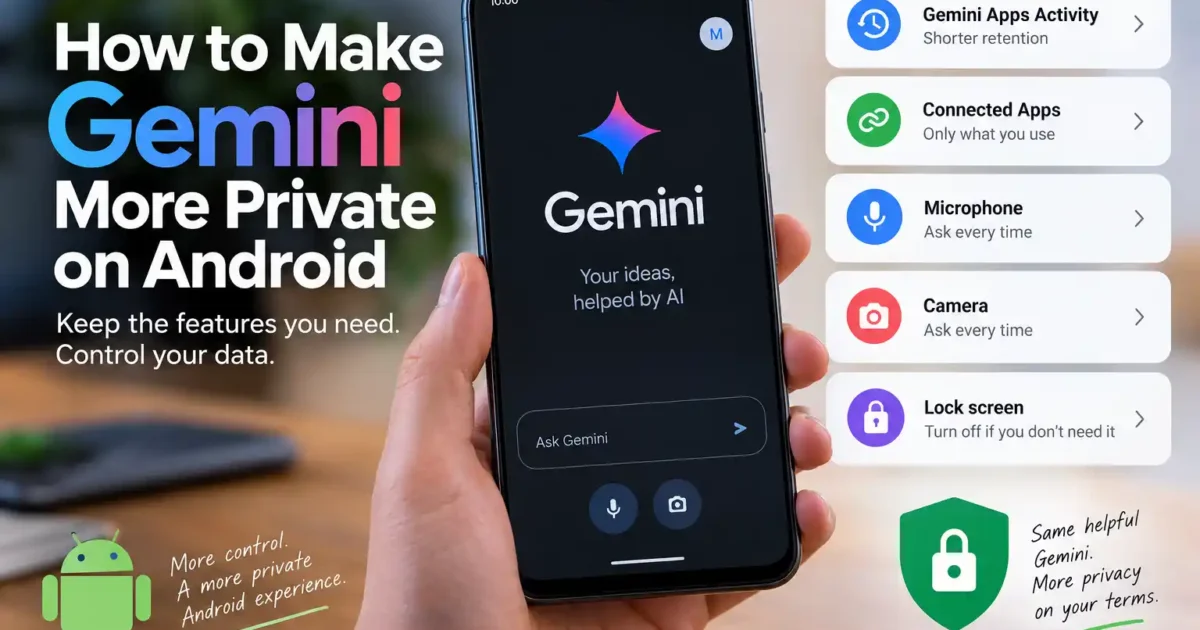

Gemini Android privacy settings are easier to understand when you treat them as separate decisions, not one giant privacy switch. You can keep Gemini useful for questions and quick actions while limiting how long chats remain in your account, which apps it can read, and what it can do before you unlock the phone.
Before you start: choose the privacy level you actually need
There is no single “best” setup. Someone who uses Gemini to draft shopping lists may be comfortable with more access than someone who discusses client work, health information, or family matters. Use the steps below to make a deliberate choice. Do not disable a feature merely because its name sounds intrusive; check what it does and what stops working when you turn it off.
Step 1: Gemini Android privacy settings for chat history
Start here because this setting affects the record of what you ask Gemini. Open the Gemini app, tap your profile picture or initial, and choose Gemini Apps Activity. Look at the activity already saved before changing the setting. You may find ordinary prompts, uploaded images, or Gemini Live material that you had forgotten about.
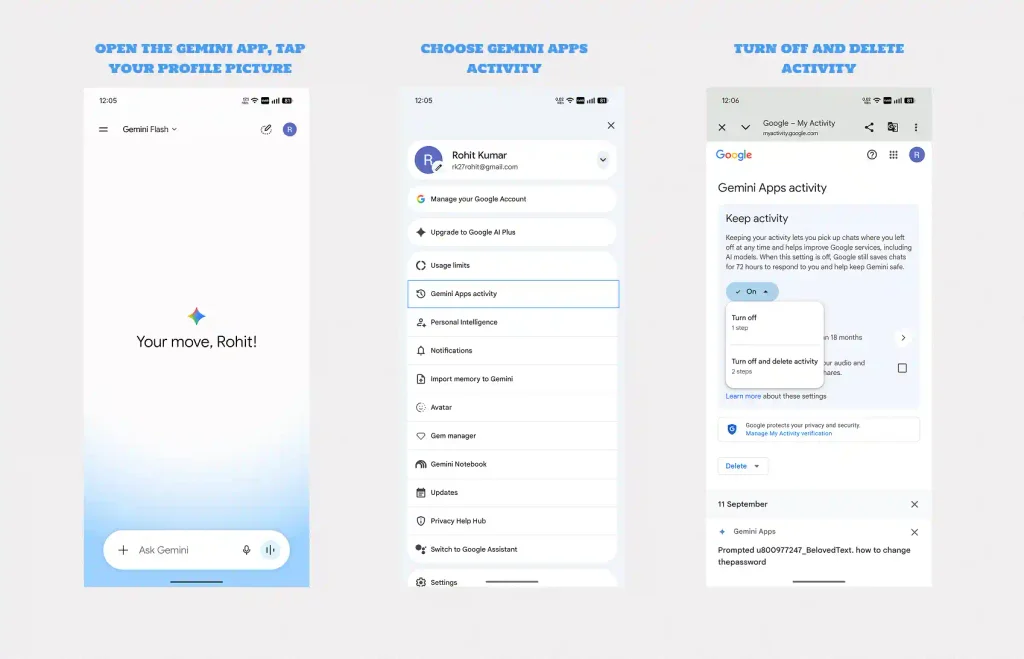
At the top of the activity page, tap the control showing that activity is on. You have two useful choices:
- Turn off: future chats do not appear in Gemini Apps Activity, but Google says conversations can still be held for up to 72 hours so Gemini can provide the service and process feedback.
- Turn off and delete activity: changes the future setting and starts the deletion process for saved activity.
- Auto-delete: keeps the convenience of history but removes older activity after the period you choose.
My practical recommendation: choose auto-delete for 3 months if you often refer back to useful chats but do not want an old archive. Turn Keep Activity off if you rarely revisit conversations and prefer less account history. Leave it on for a shared family workflow only if the convenience is worth having those prompts saved.
Step 2: Remove old chats instead of assuming the switch did it
Turning off Keep Activity does not automatically remove every copy of information from another Google service. In Gemini Apps Activity, delete a single item, a day, a custom date range, or all activity. If you used Gemini Live, check the related entry because Google says audio, transcripts, video, and screenshares can be associated with that activity.
There is a second cleanup decision when Connected Apps are involved. Deleting a Gemini chat does not delete the original Gmail message, Google Photos item, contact, or Drive file. Disconnecting the app does not erase old Gemini activity either. If a detail should disappear from both places, delete the Gemini activity and manage the original item in its own Google app.
Step 3: Decide which apps Gemini is allowed to use
Open Gemini, tap your profile picture or initial, and select Connected Apps. Some accounts place this under Personal Intelligence. This is the setting to inspect if you do not want Gemini searching personal mail, photos, contacts, YouTube activity, or Workspace files when answering a prompt.
Do not switch everything off automatically. Match each app to a real task:
| Connected app | Leave it on if… | Turn it off if… |
|---|---|---|
| Gmail / Workspace | You ask Gemini to find messages or summarise documents. | You do not want personal or work content used in Gemini answers. |
| Google Photos | You want help finding or discussing your own photos. | You only use Gemini for typed questions. |
| Contacts | You want hands-free calls or messages to saved people. | You do not want contact names available to the assistant. |
| YouTube | You ask about your watch history or saved content. | You want general answers without personal viewing data. |
| Utilities | You use Gemini to set alarms, control settings, or perform phone actions. | You prefer Gemini to answer questions but not operate the device. |
One limitation worth knowing: turning Keep Activity off can make several Connected Apps unavailable. Google says Utilities, Phone, Messages, and WhatsApp can remain available on Android, while other integrations may disappear. If a feature stops working after you change the activity setting, that may be an intentional trade-off rather than a bug.
Step 4: Stop voice and camera access you do not use
Android permissions and Gemini Connected Apps are separate. Open Settings > Apps > Gemini > Permissions. On some phones, Gemini’s device access is handled through the Google app, so check Settings > Apps > Google > Permissions if Gemini is not listed.
For Microphone and Camera, choose Ask every time where available. Choose Don’t allow if you never use voice chats, live conversations, image questions, or camera input. You can continue typing prompts after removing those permissions; the features that need them will stop asking to open.
For Photos and videos and Contacts, deny access unless you use those features. “Ask every time” is useful when you occasionally need to show Gemini a photo but do not want standing access. Android’s Privacy Dashboard can show which apps accessed the microphone, camera, and other permissions recently.
When leaving access enabled makes sense: hands-free driving, accessibility needs, quick photo questions, and voice messages are legitimate reasons. When denying it makes sense: you mostly type, share a phone with family, or do not want an accidental voice request to include nearby conversation.
Step 5: Gemini Android privacy settings for the lock screen
Open Gemini, tap your profile picture or initial, select Settings, and tap Gemini on lock screen. Turn off Use Gemini without unlocking if you want every Gemini request to wait until the phone is authenticated.
Leaving this enabled is convenient for alarms, timers, media controls, and quick device actions. The downside is that a person holding your locked phone may be able to perform supported actions or interact with notification content without your normal unlock step. Review Android’s Sensitive notifications setting too; lock-screen Gemini and notification previews together expose more than either setting alone.
For most people, I would leave lock-screen access off and keep ordinary lock-screen controls available. Turn it on only if you regularly use hands-free actions and have tested exactly what your phone allows while locked.
Step 6: Know what changes when Gemini replaces Google Assistant
When Gemini becomes the primary mobile assistant, “Hey Google” and the old touch shortcut can open Gemini instead of Google Assistant. That gives you better access to open-ended questions, images, and screen-aware help. It can also change familiar voice actions. Google says some Assistant features are not available in every language, country, account type, or situation.
If a command you depend on stops working, open Settings > Apps > Default apps > Digital assistant app and choose the option you prefer. On Samsung phones, search Settings for Digital assistant app or Side button. Switching back to Assistant does not erase Google activity; review Web & App Activity separately if that matters to you.
The setup I would use on my own phone
- Set Gemini Apps Activity to auto-delete after 3 months.
- Disconnect Gmail, Drive, Photos, Contacts, and YouTube unless a specific task needs them.
- Set camera and microphone to Ask every time.
- Keep Photos access off until I deliberately share an image.
- Turn Gemini on the lock screen off.
- Keep Utilities connected only if device actions save me time.
- Review the Privacy Dashboard after a week instead of guessing which permissions Gemini used.
This is not the only sensible setup. The point of these Gemini Android privacy settings is control: keep the feature that solves a real problem, and remove the access that only adds convenience you never use.

No comments yet. Be the first to share your thoughts!