
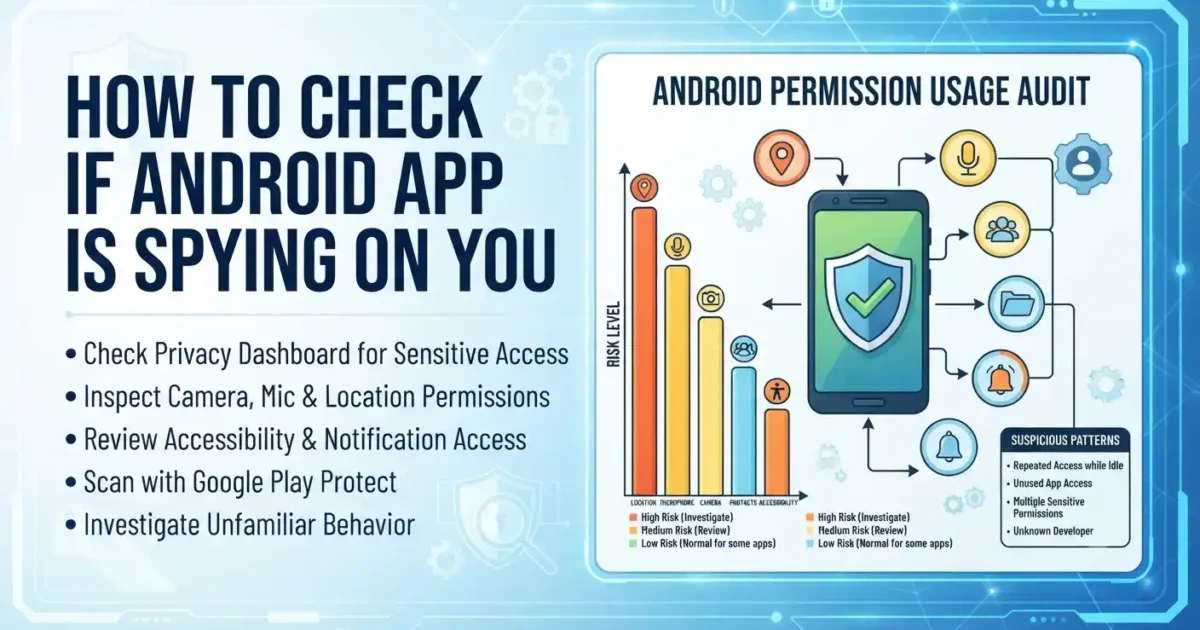

Short answer: If you want to check if Android app is spying on you, do not rely only on heat or battery drain. Android cannot prove an app’s intent from those symptoms alone. A better check is to inspect which apps accessed your microphone, camera, location, photos, contacts, notifications, and accessibility features, then compare that access with what each app is supposed to do.
This guide shows how to check an Android phone for suspicious app access without jumping to conclusions. The menu names can differ between a Google Pixel, Samsung Galaxy, Motorola, OnePlus, and other Android phones, so use the search box inside Settings when a path does not match your screen.
Safety note: If you think a partner, ex-partner, or someone with physical access to your phone may be monitoring you, do not immediately uninstall an unfamiliar app. The FTC warns that removing stalkerware can alert an abuser. Use a safer device to contact the National Domestic Violence Hotline or a local advocate.
How to check if Android app is spying on you
An app is not suspicious merely because it requests a permission. A navigation app needs location. A video-calling app may need the camera and microphone. A screen reader needs accessibility access. The real question is whether the access matches the app’s purpose, whether you knowingly granted it, and whether the app still needs it.
Android app spying can mean several different things. An ordinary app may collect more information than you expected. A malicious app may abuse powerful permissions. Stalkerware is a more serious situation in which someone deliberately installs software to monitor another person’s activity. These cases need different responses, so avoid treating every privacy concern as proof of malware.
1. Check if an Android app is spying through sensitive permissions
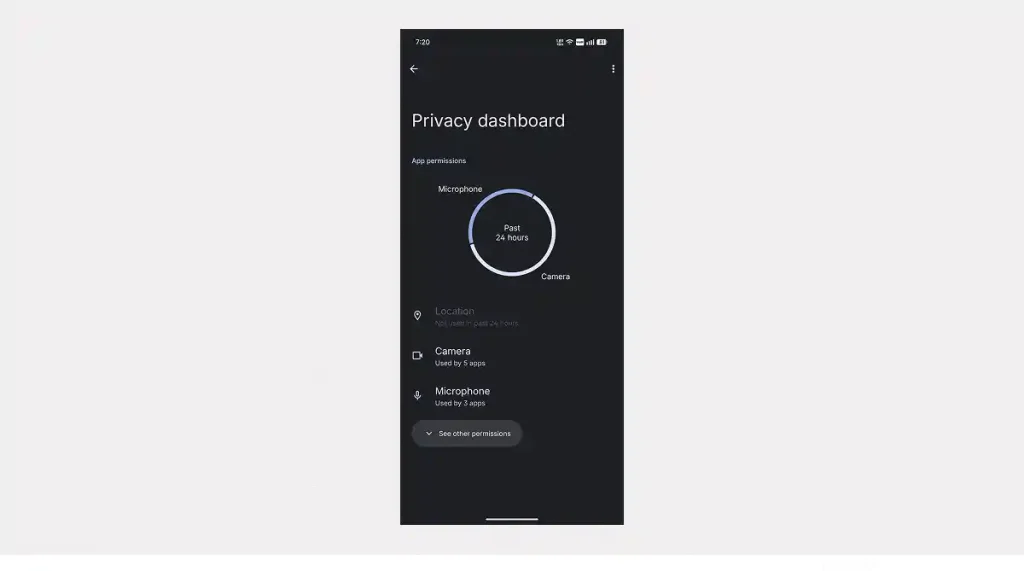
Start by checking your Android privacy settings. On most newer phones, you’ll find this under Settings, then Security and privacy, then Privacy dashboard. If your phone’s laid out differently, just search “Privacy dashboard” or “Permission manager” in your Settings app and it should pop right up.
Look at recent access to the microphone, camera, location, and photos or files. Open each category and ask three practical questions: Which app accessed it? When did it happen? Was I using that feature at the time?
- An unfamiliar app accessed the microphone while you were not using a calling or recording feature.
- A simple game or wallpaper app has location, contacts, microphone, or SMS access without an obvious reason.
- An app continues requesting access after you have stopped using its related feature.
- The same unknown app appears across several sensitive permission categories.
One access event does not prove spying. A background service may explain legitimate activity. Repeated access from an app you do not recognize deserves a closer look.
2. Check every app with camera, microphone, and location access
Open your Settings app, tap into Privacy, then Permission manager, and go through the sensitive categories one at a time. Labels can vary a bit depending on your phone’s brand and Android version, but if you can’t find it, just type “permissions” into the Settings search bar and it’ll turn up.
Microphone and camera
Keep microphone or camera access only when the app needs it. A video meeting app may need both while you are on a call. A calculator usually does not. If Android offers Allow only while using the app or Ask every time, those options reduce unnecessary background access.
Location
For most apps, Allow only while using the app is a better starting point than all-the-time access. Turn off precise location when an approximate location is enough. A weather app may work with approximate location, while turn-by-turn navigation normally needs more accurate data.
Photos, files, contacts, and SMS
Review these permissions with extra care. An app that edits a selected photo may not need access to your entire library. A messaging app may need contacts, but a flashlight should not. SMS access is particularly sensitive because verification codes can protect email, banking, and social accounts.
The U.S. Cybersecurity and Infrastructure Security Agency recommends reviewing app permissions and paying special attention to contacts, camera, storage, location, and microphone access.
3. Inspect Accessibility access
Accessibility services are designed to help people interact with Android. They can also observe screen content and perform actions on a user’s behalf, which makes this menu important during a security check.
Search Settings for Accessibility, open Installed apps or Downloaded apps, and review every enabled service. Keep services you intentionally use, such as TalkBack or a trusted accessibility tool. Investigate an unfamiliar service before disabling it.
Do not disable a service just because it sounds technical. First note its name, developer, and package information. Search for the app in Google Play and check whether it came from your phone manufacturer, your employer, or a known developer. An unknown app with accessibility access and no clear purpose is more concerning than a known screen reader.
4. Review Notification access
Notification access allows an app to read notifications. Depending on the implementation, those notifications may contain message previews, one-time codes, email subjects, and other private information.
Search Settings for Notification access. If you are checking notification history, our guide to viewing cleared Android notifications explains a different feature and should not be confused with notification access. The menu may be under Special app access. Turn off access for apps you do not recognize or no longer use. Leave it enabled for a feature you deliberately installed, such as a smartwatch companion or trusted automation tool.
Android’s own documentation explains that a notification listener can access incoming notifications. That is why this permission should not be granted casually.
5. Check Device admin apps, VPNs, and install permissions
Search Settings for each of these areas:
- Device admin apps: An organization, parental-control tool, or security app may use this access. An unknown app should be investigated before removal.
- VPN: A VPN can route network traffic through its service. Keep only VPNs you intentionally installed or that your employer manages.
- Install unknown apps: Review which apps can install APK files. Turn this off for browsers, file managers, and messaging apps unless you have a specific reason to use it.
- Display over other apps: Overlay access can let an app appear above other apps. It has legitimate uses, but an unknown app should not have it.
- All files access: This is broader than ordinary photo access. Remove it from apps that do not need to manage files.
These settings do not prove that an app is malicious. They show where an app has more power than a normal camera, notes, or game app.
6. Run Google Play Protect
Open the Google Play Store, tap your profile picture, choose Play Protect, and run a scan if one is available. Keep Play Protect enabled. Google says it checks apps installed from Google Play, scans for potentially harmful apps from other sources, and may warn about, disable, or remove an app it identifies as harmful.
Play Protect is useful, but a clean scan does not prove that an app respects your privacy. An app can be unwanted or overly invasive without meeting Google’s definition of malware. Use the scan alongside the permission review rather than treating it as the only test.
Also check the app’s Google Play listing. Look at the developer name, update history, reviews, Data safety section, and requested permissions. The Data safety section is useful context, not an independent guarantee.
7. Look for signs that need more than a permission reset
Battery drain, mobile data use, overheating, and crashes can have many ordinary causes. A weak signal, an aging battery, a system update, cloud photo backup, or a badly designed app can produce the same symptoms as suspicious software. If the phone is simply running slowly or draining quickly, compare these checks with our Android phone troubleshooting guide before assuming spyware.
These signs are more useful when they appear together with unexplained permission access:
- An unfamiliar app appeared after someone else had unsupervised access to the phone.
- The phone has an unknown VPN, accessibility service, device administrator, or notification listener.
- An app disappears from the launcher but remains visible in Settings or the battery list.
- Your accounts show unknown sign-ins, password-reset messages, or verification codes you did not request.
- The device is rooted or has an unlocked bootloader that you did not configure.
Open Setting then find battery and setting then go to network and internet (or Connections on Samsung) then click on app data usage to spot heavy and unusual background activity. These menus show resource consumption, not necessarily what the app is supposed to be doing. Note down your findings before you alter anything.
8. What to do after you check if an Android app is spying on you
If the situation does not involve personal safety, take a measured approach:
- Take screenshots of the app name, developer, permissions, and recent activity.
- Check whether it is a system component, work profile app, parental-control tool, or manufacturer service.
- Revoke unnecessary permissions and disable powerful access such as accessibility, notification access, VPN, or device administration when appropriate.
- Uninstall the app through Settings, then restart the phone and run Play Protect again.
- Update Android and your installed apps from official sources.
- Change important account passwords from a device you trust if you found evidence of account access, and enable multifactor authentication.
Do not download a random “spyware remover” because a popup told you to. Many fake security tools create the problem they claim to solve.
When a factory reset makes sense
A factory reset is a last resort, not the first response to battery drain. Consider it after preserving essential photos and documents, securing your accounts, and checking whether the concern returns after updates and app removal. Before restoring a backup, think about whether it may restore the same unwanted app or configuration.
If you believe the phone is rooted, compromised at the system level, or being monitored by someone with access to your accounts, get help from a qualified technician or a safety advocate before resetting it.
Check if Android app is spying on you: final checklist
Use this checklist when you need to check if Android app is spying on you without treating one symptom as proof.
- Review Privacy dashboard and Permission manager.
- Check microphone, camera, location, photos, contacts, SMS, and call access.
- Inspect Accessibility, Notification access, Device admin apps, VPN, overlays, and unknown-app installation.
- Run Google Play Protect and review the app’s official Play listing.
- Check battery, data use, account sessions, and unexpected verification codes.
- Use a safer device and contact an advocate if the concern involves an abusive partner or ex-partner.
Frequently asked questions
If you still cannot check if Android app is spying on you with these steps, document the permissions and seek help from a trusted technician or safety advocate.

No comments yet. Be the first to share your thoughts!