


Local Ollama is a free, open-source tool that runs AI models on your own laptop instead of someone else’s server. The software itself costs nothing and has no usage cap — install it, pull a model, and run it as many times as you want, offline, with no account required. There’s also an optional Ollama Cloud tier (Free / Pro around $20 a month / Max around $100 a month) for the rare case where you want a model too large for your hardware — same commands, same API, just routed to Ollama’s servers instead of your machine. You don’t need it to follow this guide; it only matters once local hardware becomes the limit, not before.
Three commands, and you’re chatting with a local model:
curl -fsSL https://ollama.com/install.sh | sh   # Linux only — Windows/Mac use the installer below
ollama pull llama3.2:3b
ollama run llama3.2:3b
That’s the whole setup. Everything after this is the part people actually get stuck on: which model fits your laptop, what speed to expect, what to do when it’s slow, and how to use it from code instead of a terminal.
What You Need
8 GB of RAM → stick to 1B–3B models. llama3.2:3b or gemma3:4b. A 7B model will load. It just won’t enjoy it.
16 GB → this is the real sweet spot for a laptop in 2026. qwen2.5:7b or llama3.1:8b run comfortably, especially with a GPU.
32 GB+ or Apple Silicon → 14B–32B opens up. But ask yourself if you need it. Most people are better off not starting with a 32B model just because the laptop can technically run it — a 7B model that answers in two seconds beats a 32B model that takes fifteen, for almost everything you’ll actually use it for day to day.
RAM sets the floor. VRAM decides how it feels. If a model fits entirely on the GPU, generation is fast. If it spills into system memory, speed drops hard often by 10x or more. Quantization makes large models practical on consumer hardware: a 4-bit 7B model uses around 4–5 GB of memory, compared to roughly 14–16 GB in FP16.
Install Ollama
For Windows
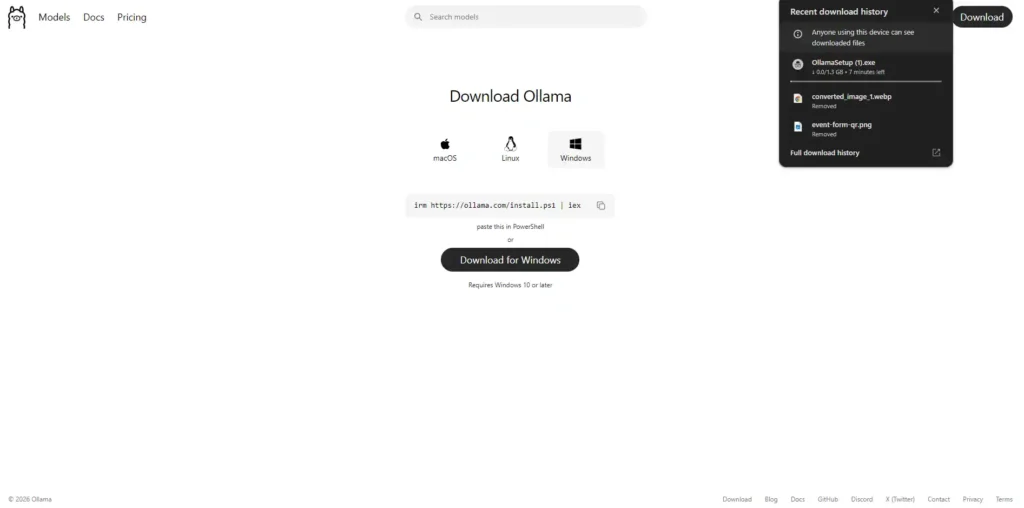
Step 1: Download the installer
Go to ollama.com/download and click the Windows download button. A file shows up — usually called OllamaSetup.exe. Takes a few seconds depending on your connection.
Step 2: Run the installer
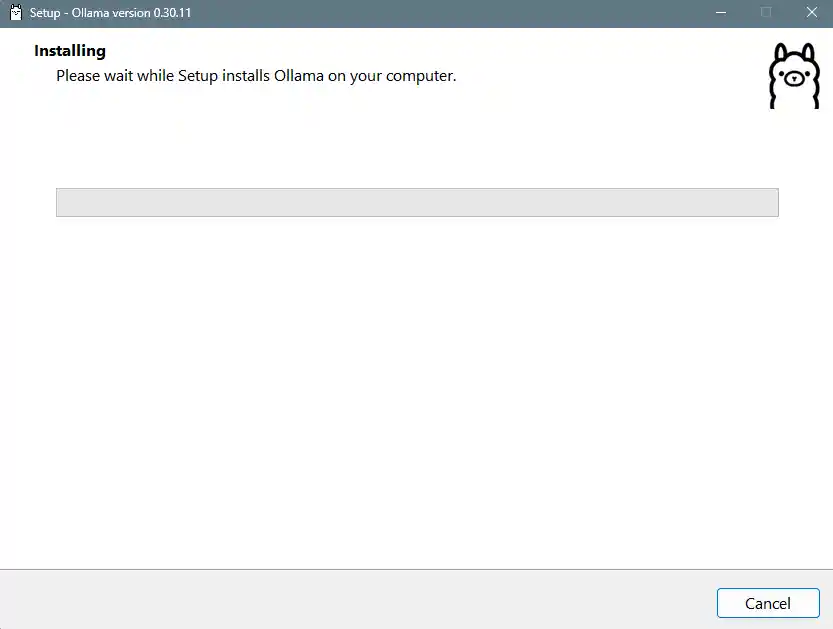
Double-click the downloaded file. On most Windows PCs, Ollama installs without administrator privileges, although some systems may still display a UAC prompt.
Step 3: Installer finishes
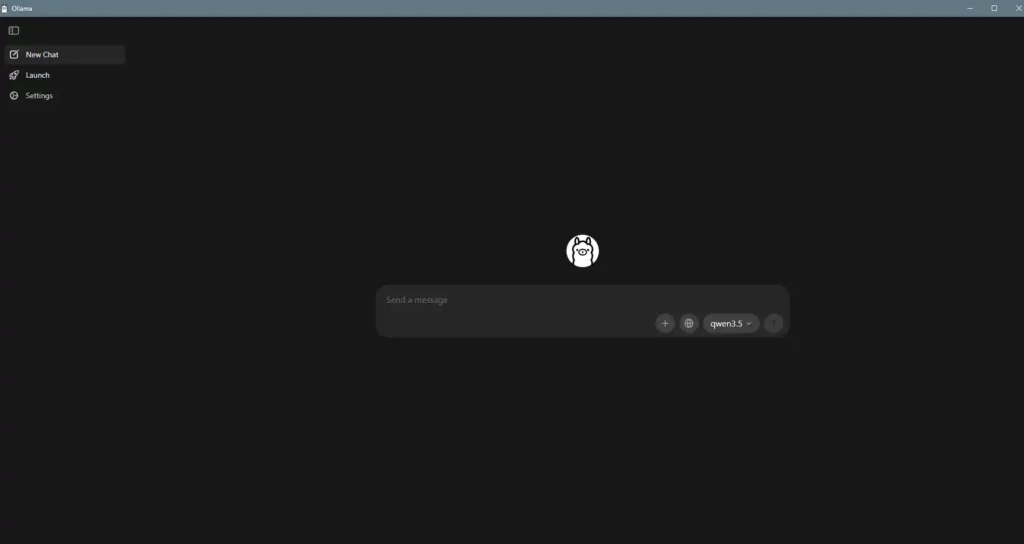
The installer closes automatically — there’s no “Finish” button to click. On Windows, it then automatically opens the Ollama app, a simple chat window with a model selector and message box. This is expected behavior, not an error.
Step 4: Open a terminal and confirm the install
Open Command Prompt or PowerShell (the desktop app and the terminal are independent — closing the app window doesn’t stop the Ollama service running in the background). Then run:
ollama --version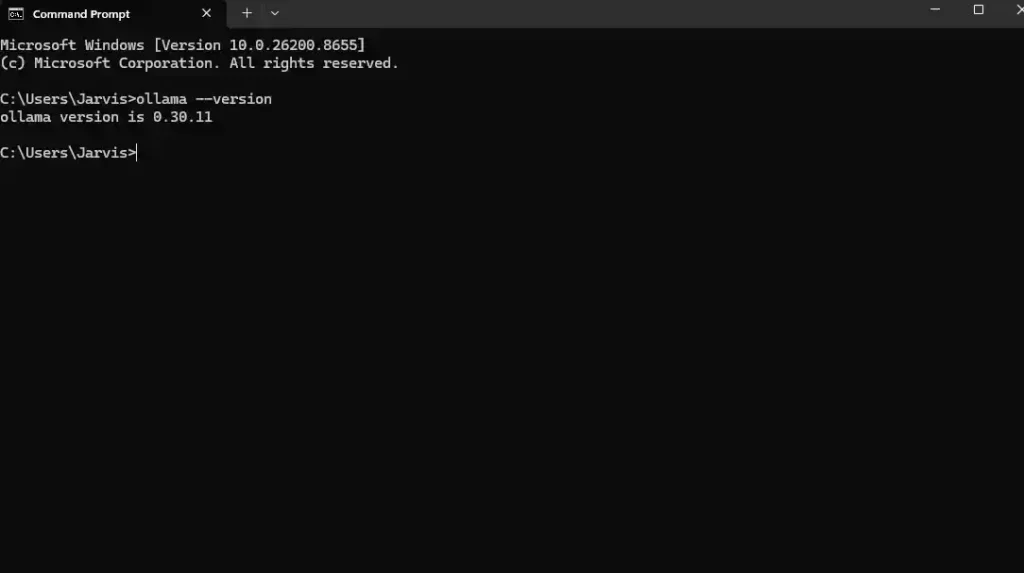
Step 5 (GPU-specific): Check GPU pickup
- NVIDIA: nothing to do — drivers are picked up automatically.
- AMD: needs the ROCm v7 driver stack installed separately, with Vulkan as the fallback for cards ROCm doesn’t cover
For macOS
Step 1: Check your macOS version
You’ll need macOS 14 (Sonoma) or newer — Apple has bumped this minimum in past releases, so don’t assume you’re covered. Check via Apple menu → About This Mac.
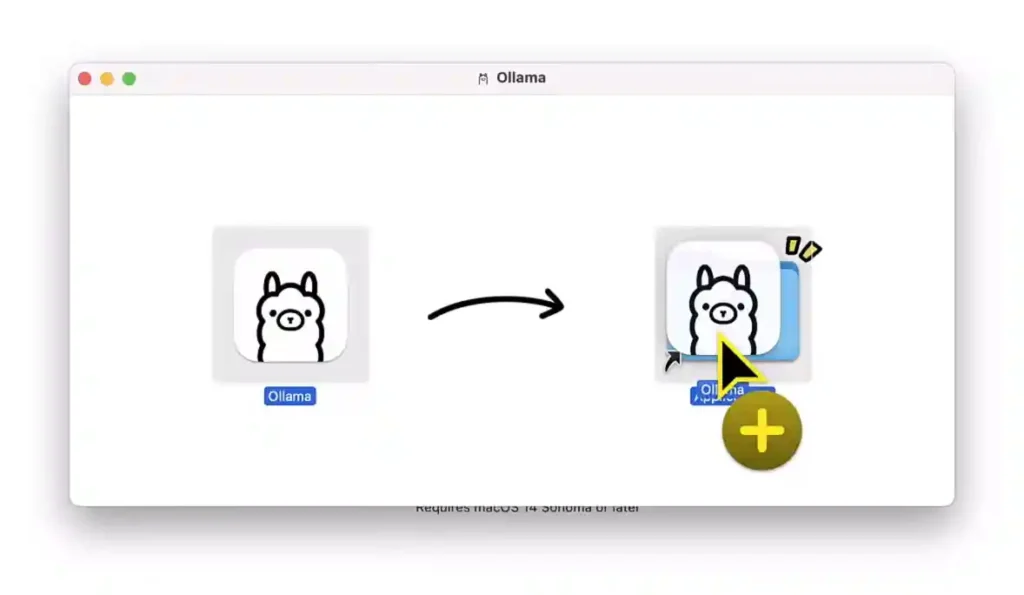
Step 2: Drag Ollama.app into Applications
From the downloaded zip, drag Ollama.app into the Applications folder.
Screenshot: the drag-and-drop, or the Applications folder showing Ollama.app installed.
Step 3: Note on acceleration
If you’re on Apple Silicon (M1/M2/M3/M4), you get Metal acceleration automatically — no extra setup needed.
For Linux
Step 1: Run the install script
curl -fsSL https://ollama.com/install.sh | shThis sets Ollama up as a background service (systemd) on most distros.
Screenshot: the terminal output after the script finishes.
Step 2: GPU acceleration — check your hardware
NVIDIA drivers get picked up automatically — no extra steps. AMD GPUs need ROCm v7 installed separately before Ollama can use them.
Screenshot: optional — skip if you don’t have a GPU to demo, or screenshot nvidia-smi / rocm-smi output if you do.
Step 3: Confirm the install
Run:
ollama listOn a fresh install this returns an empty table — that’s success, not a bug (it means Ollama is running but no models are downloaded yet).
Run Your First Model
If you haven’t pulled the model yet, just run it directly — ollama run will pull it automatically before loading it:
ollama run llama3.2:3b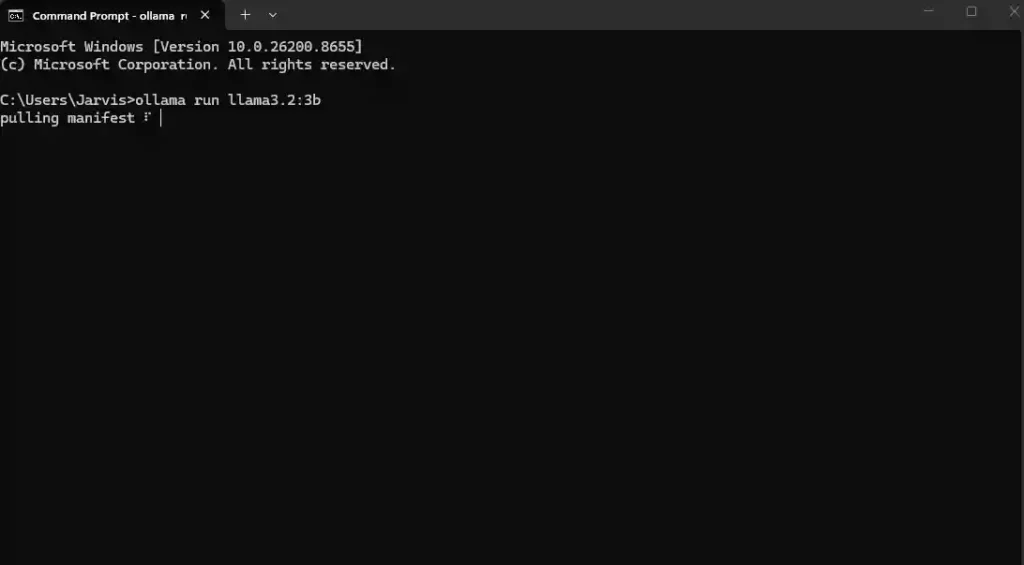
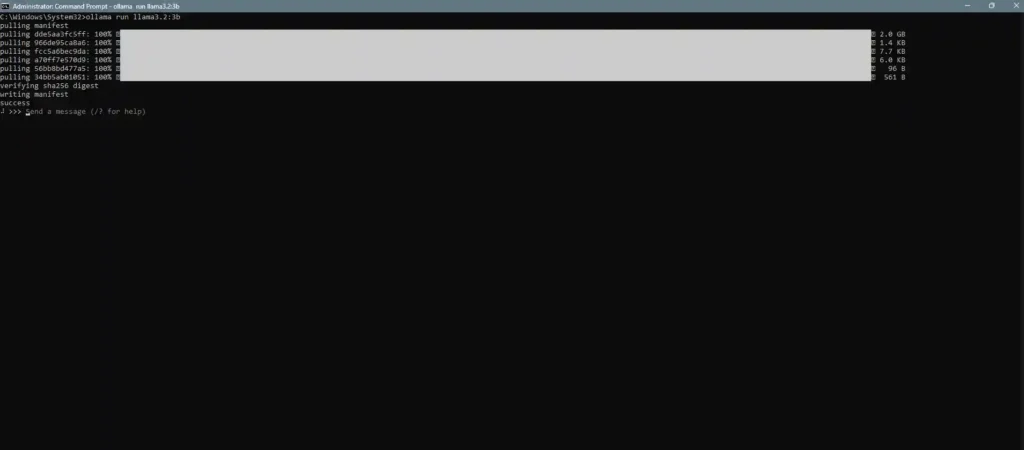
This does two things in sequence: it pulls (downloads) the model first, then loads it and drops you into a chat prompt. You’ll see a progress bar like the one below while it downloads — for llama3.2:3b that’s about 2 GB, so the wait depends on your connection speed.
Once the pull finishes, it opens a chat prompt right in the same terminal window. Already pulled it before? It skips straight to this chat prompt. To exit, press Ctrl + D.
Here’s the catch almost everyone hits once: the first response after a model loads is always slower than the rest, even on strong hardware. That’s loading time, not a performance problem. If speed never picks up after that, run ollama ps and check whether it’s actually using your GPU.
Which Model Should You Pick?
How much RAM do you have?

8 GB
 ├─ Need code help?                  → qwen2.5-coder:3b
 └─ Just chatting / writing?         → llama3.2:3b or gemma3:4b

16 GB
 ├─ Need code help?                  → qwen2.5-coder:7b
 ├─ Need math / multi-step reasoning?→ deepseek-r1:8b
 └─ Just chatting / writing?         → llama3.1:8b or qwen2.5:7b

32 GB+ / Apple Silicon
 ├─ Need code help?                  → qwen2.5-coder:32b
 ├─ Need math / multi-step reasoning?→ deepseek-r1:32b
 └─ Just chatting / writing?         → qwen3:30b or gemma3:27b
Coding and general chat are different jobs. qwen2.5-coder beats a general-purpose model at code even at a smaller size — don’t reach for the bigger generalist out of habit. And reasoning models like deepseek-r1 “think” before answering, which makes them slower per response and a poor pick for quick back-and-forth chat, but noticeably better at problems with several steps.
What Speed Actually Looks Like
Figures below are from public benchmarks, not tested for this guide — quantization, context length, and Ollama version all shift results. Treat as a sense of scale, not a guarantee.
| Hardware | Model (quant) | Speed | Why |
|---|---|---|---|
| CPU only | Llama 3 8B (Q4) | ~5 tok/s | No GPU offload |
| RTX 3060 12GB | Llama 3.1 8B (Q4) | ~45 tok/s | Fits in VRAM |
| RTX 3080 | Llama 3 8B (Q4) | 40+ tok/s | Full GPU offload |
| Dual GPU (4060 Ti + 3060) | 30B MoE (3B active) | ~54 tok/s | Only active params compute |
| 16GB+ VRAM / Apple Silicon | 7B–14B class | 30–60 tok/s | General range, several sources |
| RTX 5090 vs 4090 | Same model | 5090 ~28–67% faster | Memory bandwidth is the bottleneck once VRAM fits |
Running the same model on a compatible GPU is typically 5–10× faster than CPU-only inference. Once a model fits entirely in VRAM, upgrading to a newer GPU usually improves throughput by tens of percent rather than several-fold.
Real-World Benchmarks
To see how this plays out on real hardware, I benchmarked the models below using the following test system:
- GPU: NVIDIA GeForce RTX 3060 (12 GB VRAM)
- RAM: 16 GB DDR5
- Operating System: Windows 11
- Ollama Version: 0.30.10
Results will vary depending on your CPU, GPU, RAM, model quantization, context length, prompt complexity, and Ollama version.
| Model | Size | Eval rate (tok/s) | Total duration | Outcome |
|---|---|---|---|---|
| llama3.2:3b | 2.6 GB | 114.08 | 2.83s | Clean, complete answer (100% GPU) |
| gemma4:e4b | 9.6 GB | 68.63 | 9.8s | Clean, complete answer |
| qwen3.5:latest | 6.6 GB | 48.83 | 84.0s | Never finished — burned 4,072 tokens stuck in its thinking step, cut off mid-sentence |
| qwythos-9b-abliterated (Q4_K_M) | 5.6 GB | 48.03 | 21.5s | Clean, complete answer |
qwen3.5 wasn’t slower per-token than qwythos (48.8 vs 48.0) — it just got stuck re-drafting inside its own reasoning step and never produced an answer. “Tokens/sec” alone hides this kind of failure.
Fix for looping reasoning models: cap output length. API: options.num_predict to 600–800. Interactive: /set parameter num_predict 600. If a model keeps looping, avoid strict word-count prompts with it, or pick a model without an exposed thinking step.
How It Actually Works
Ollama wraps llama.cpp, the engine that made it possible to perform quantization inference of LLMs on ordinary hardware. To download a model, you should use ollama pull command, and then to start an inference server with ollama run, which at the same time provides a local REST API (usually port 11434 by default) which can be invoked by applications running on your machine. Neither accounts nor internet connections are needed if the models are already downloaded. In case, you will find a model which will be too big for your hardware, Ollama also provides a cloud service option for performing inference.
A couple of settings are worth understanding rather than just copying:
OLLAMA_KEEP_ALIVE=-1 — by default, Ollama unloads a model from memory five minutes after the last request, so the next request pays a reload cost, often a full second or more before the first token appears. Setting this to -1 keeps the model resident so every call is instant. That matters if you’re repeatedly calling the same model from a local app or script. The trade-off: the model sits in RAM or VRAM the whole time, even when idle — fine on a 32 GB desktop, a bad idea on an 8 GB laptop running three other things.
OLLAMA_MAX_LOADED_MODELS — raises how many models Ollama keeps loaded simultaneously, above the default of one. Useful if you’re running a chat model and an embedding model together for a RAG setup, or comparing two models without eating a reload delay every time you switch. Each loaded model claims its own slice of memory, so this setting is really a memory budget decision, not a free upgrade.
Use It with the API
curl http://localhost:11434/api/chat -d '{
  "model": "llama3.2",
  "messages": [{"role": "user", "content": "Why is the sky blue?"}],
  "stream": false
}'
import ollama
response = ollama.chat(model="llama3.2", messages=[
{"role": "user", "content": "Write a palindrome checker in Python"}
])
print(response["message"]["content"])There’s also an OpenAI-compatible endpoint at /v1/chat/completions, so tools built for the OpenAI SDK can point here with barely any code change. The API only listens on localhost by default — leave it that way unless you specifically need other devices on your network to reach it.
Want a browser interface instead of a terminal? One Docker command gets you Open WebUI:
docker run -d -p 3000:8080 --add-host=host.docker.internal:host-gateway \
  -v open-webui:/app/backend/data --name open-webui \
  ghcr.io/open-webui/open-webui:main
Open localhost:3000 and every model you’ve already pulled shows up in the dropdown.
Ollama vs LM Studio vs Jan vs GPT4All
| Ollama | LM Studio | Jan | GPT4All | |
|---|---|---|---|---|
| Best for | Developers, scripting | Browsing/trying models | Privacy purists | Fastest first chat |
| Interface | Terminal + API | Native GUI | Native GUI | Native GUI |
| Open source | Yes (MIT) | No | Yes (MIT) | Yes |
| Built-in document Q&A | No | No | Basic | Yes (LocalDocs) |
Use Ollama if you’re writing code against it. But if you want the best model browser choose LM Studio. Pick Jan if you need to prove nothing leaves the machine. Pick GPT4All if you just want to chat with a PDF in five minutes.
Common Problems
It’s slow. Run ollama ps. CPU instead of GPU is the usual answer. Already on GPU and still slow? The model’s too big for VRAM and spilling into RAM — try a smaller or more quantized version.
Ollama isn’t detecting your GPU. nvidia-smi for NVIDIA, rocminfo for AMD. If neither shows your card, the driver — not Ollama — is the problem.
Want to store models on another drive? Set OLLAMA_MODELS to a new folder under Windows environment variables, quit Ollama from the tray, relaunch. External SSDs work fine here, USB-C included, as long as the path stays stable.
A pull keeps failing. Usually disk space, a flaky connection, or a firewall blocking outbound HTTPS. Re-running the same ollama pull resumes instead of starting over.
Mistakes Beginners Make
- Picking the biggest model the laptop can technically load. A model that loads is not the same as a model that’s pleasant to use. If every response takes 15+ seconds, the “smarter” model isn’t winning anything.
- Expecting GPU speeds on a CPU-only laptop. Most numbers people quote assume GPU acceleration. Without one, divide expectations by 5–10x, per the benchmark table above.
- Ignoring free disk space until a pull fails halfway through. Quantized models range from under a gigabyte to well over 100 GB. Check available space before queuing several pulls back to back.
- Running an outdated GPU driver. GPU detection depends entirely on the driver, not on Ollama. An old NVIDIA or AMD driver is the single most common reason
nvidia-smiorrocminfocomes back empty. - Running two inference tools at once. Ollama, LM Studio, and similar tools all compete for the same VRAM. Running two simultaneously usually means neither performs well, even on capable hardware.

No comments yet. Be the first to share your thoughts!