

You installed Claude Desktop expecting it to read your project folder like Cursor does. Instead, it just… chats. No file access, no obvious “connect to my computer” button. So you start wondering if that’s a Pro-only feature but it is not.
Giving Claude Desktop local file access without Pro is entirely possible, free plan included, using either a one-click extension or a small config file. Neither path requires a subscription. What follows is a setup verified against Anthropic’s own documentation and the Model Context Protocol project, not guesswork.
What MCP and Filesystem Access Actually Mean
MCP (Model Context Protocol) is the open protocol Anthropic built so Claude can talk to tools outside the chat window file systems, databases, your calendar, whatever. Claude itself has no hands. MCP gives it hands, one server at a time.
A filesystem MCP server is one such tool. It’s a small program running on your machine that exposes specific folders to Claude read, write, move, search — while everything stays local. Nothing gets uploaded anywhere just by connecting it.
If you only ever paste code into the chat, you don’t need any of this. It’s for when you want Claude working directly against files on disk.
Why Claude Desktop Feels Locked on Free
Claude Desktop is accessible on any subscription plan including the free one. The issue arises from misunderstanding the difference between Connectors and Extensions. Connectors are for remote services (Gmail, Drive, that sort of thing) and run through Anthropic’s servers. Extensions install and run local MCP servers directly on your machine that’s the filesystem piece. A brand-new install simply has zero extensions configured, so it looks like Claude can’t see your files. It just hasn’t been told where to look yet.
Method 1: The One-Click Filesystem Extension (No Code)
This is the fastest route and needs no JSON editing.
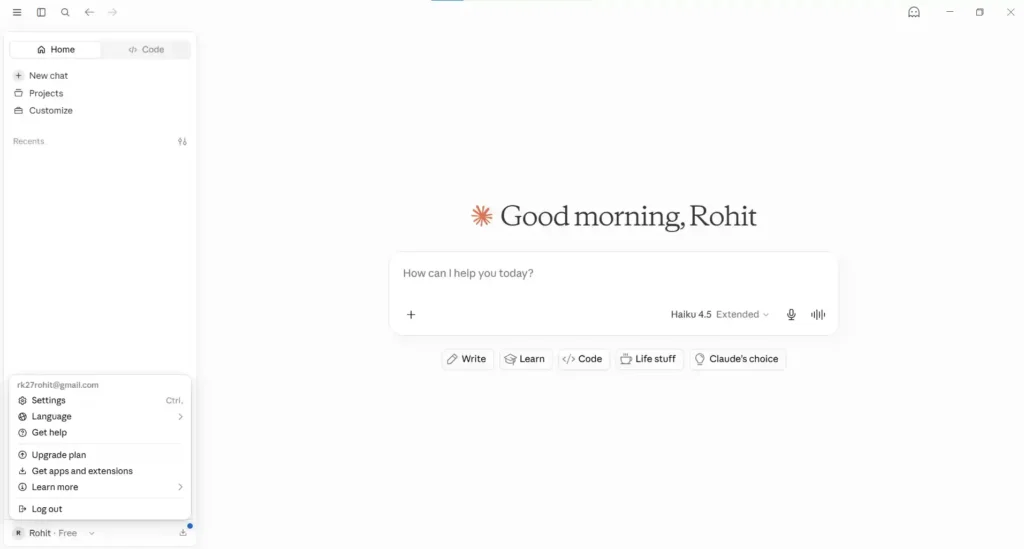
Open Claude Desktop and go to Settings right there in the bottom-left corner (or Enter Ctrl + ,)
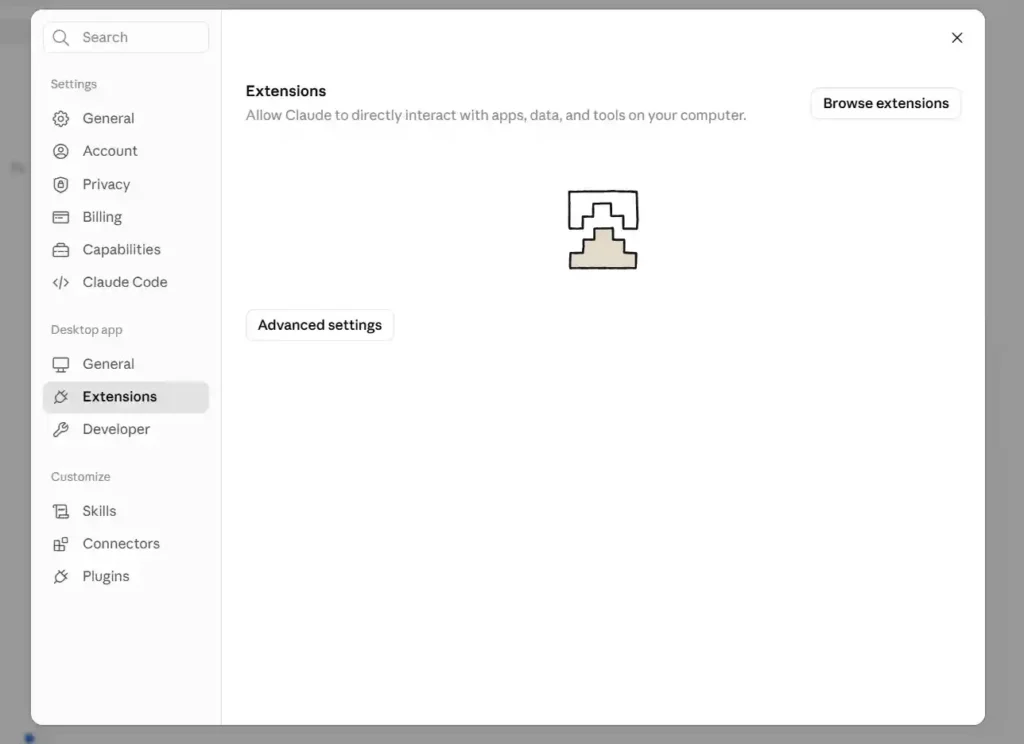
Once you’re inside Settings, look at the sidebar menu on the left side of that window. Click on Browse Extensions.
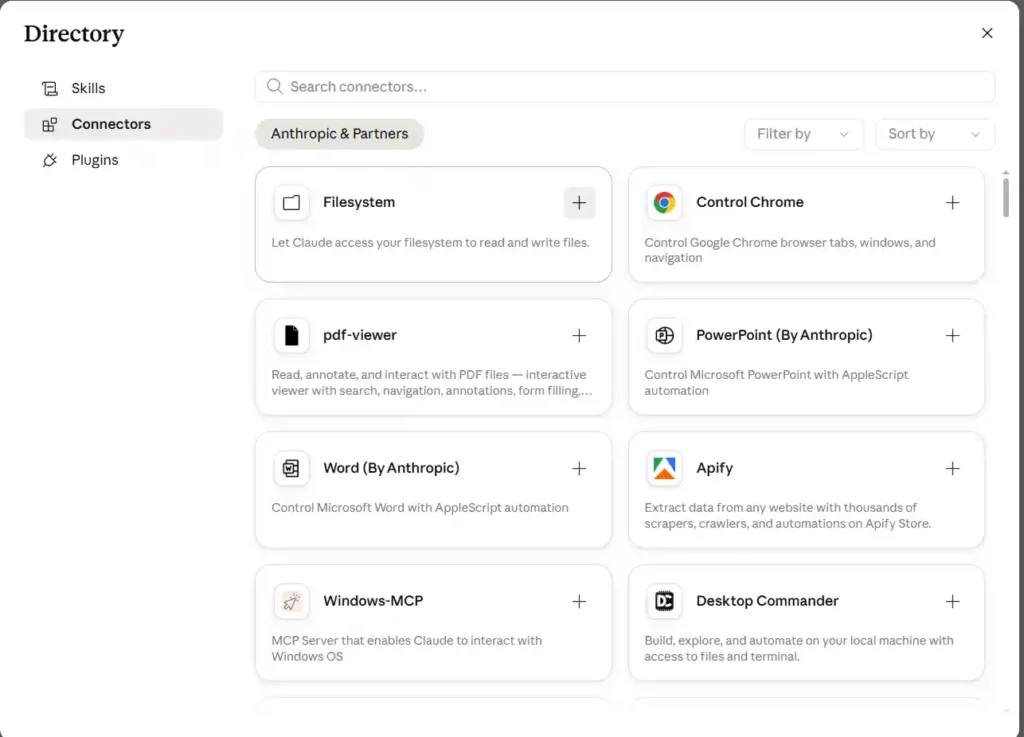
Find the filesystem option and click the + (plus) icon
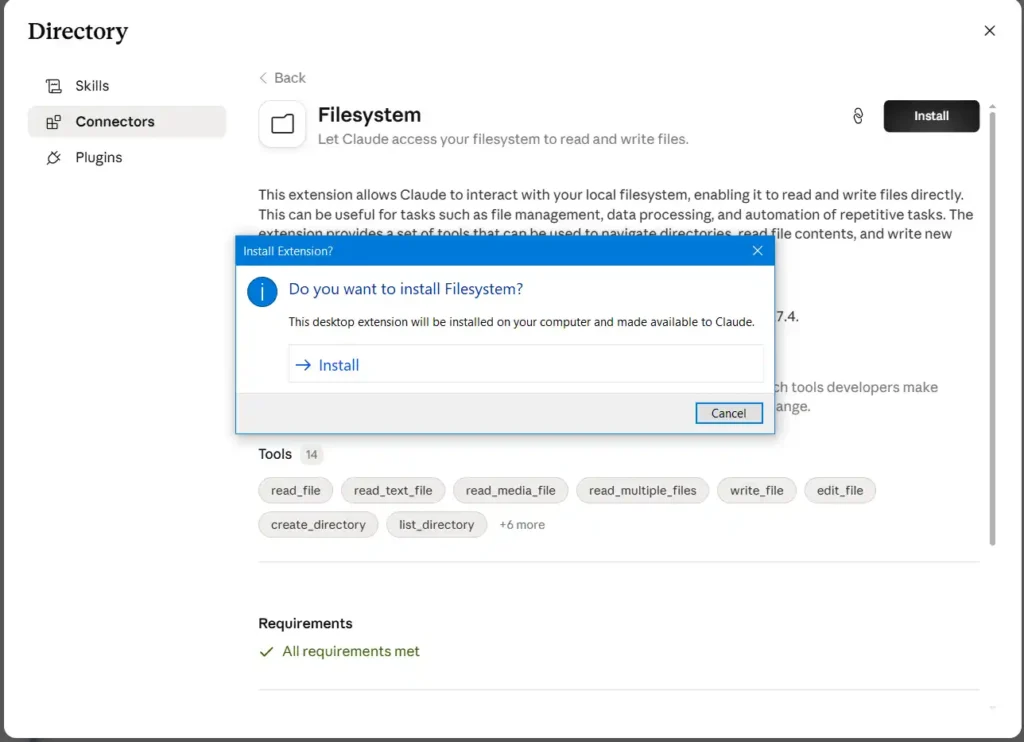
Click the black Install button in the top right corner, and then click → Install inside the blue confirmation pop-up that appears.
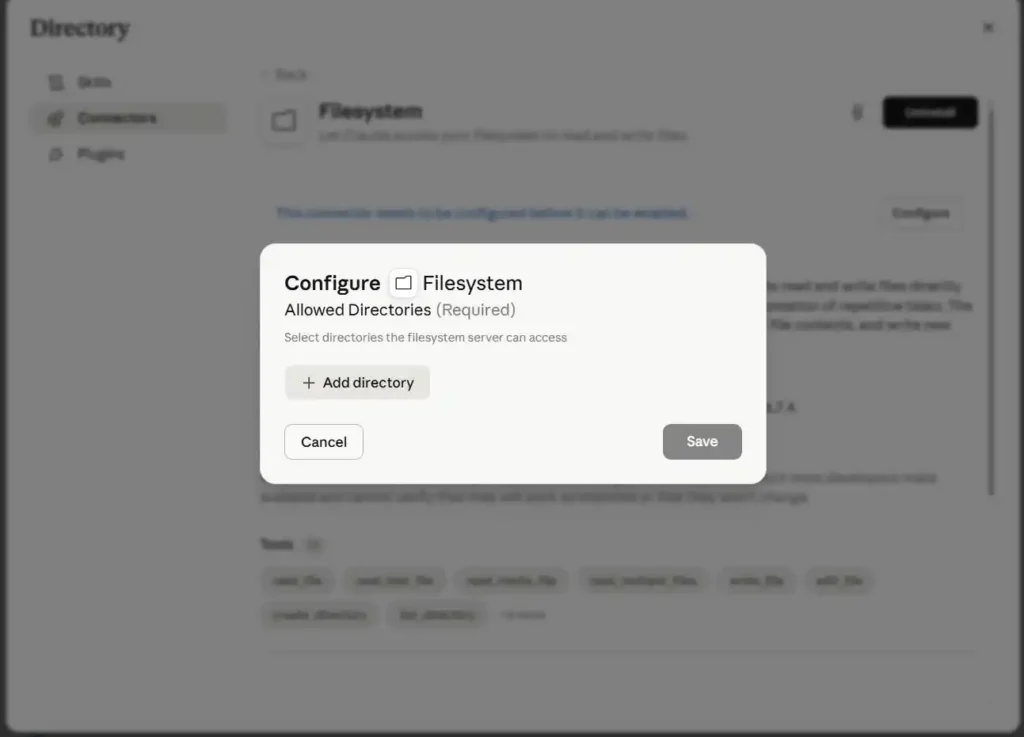
Once the installation is done, click the + Add directory button in the pop-up to choose the folders you want Claude to access.
After choosing your folder, just click the Save button to wrap it up
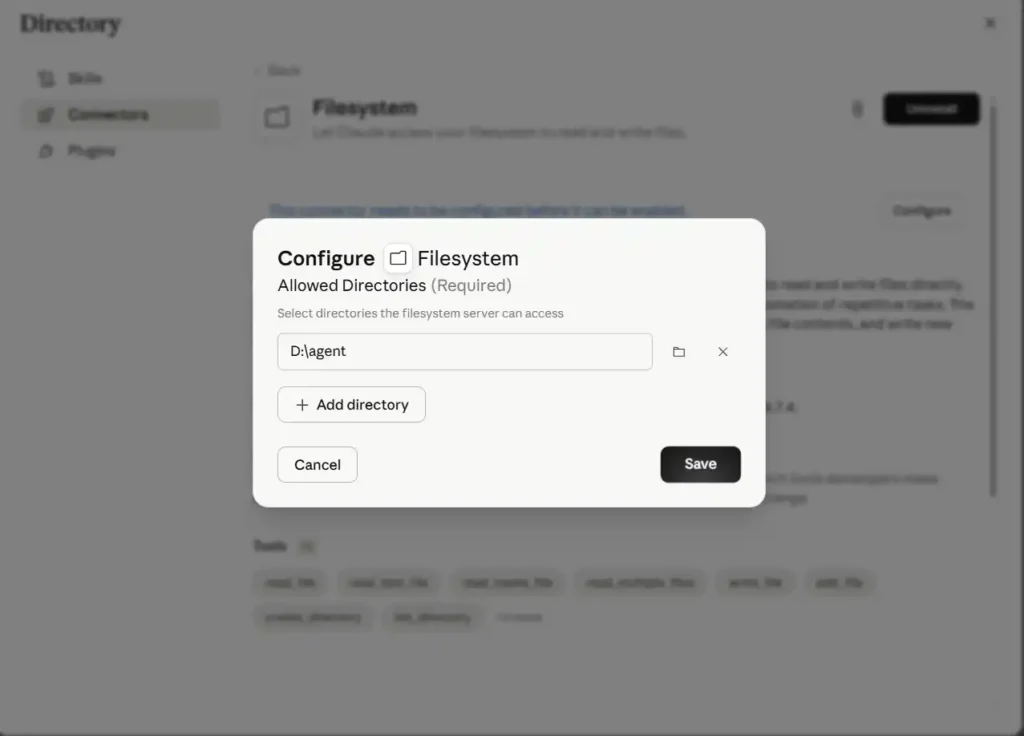
After you have saved, exit the window and return to your chat. Now you can easily ask Claude to either read or write files that are in the D:\agent folder.
You should watch out for a permission message that will prompt the first time you execute a command, and then approve the request.
Pros: no terminal, no config file, hard to break.
Cons: less flexible if you want several unrelated project folders with different rules, or want to script the setup.
If you’re not comfortable editing JSON, stop here. This covers most people completely.
Method 2: Manual MCP Filesystem Server Setup via Config JSON
This is the older, more flexible path, and it’s still fully supported it’s just no longer the only option.
Prerequisite: Node.js installed (check with node --version in a terminal).
Visit your Settings page and find Developer from the menu. Once you select Developer, press the Edit Config button listed there.
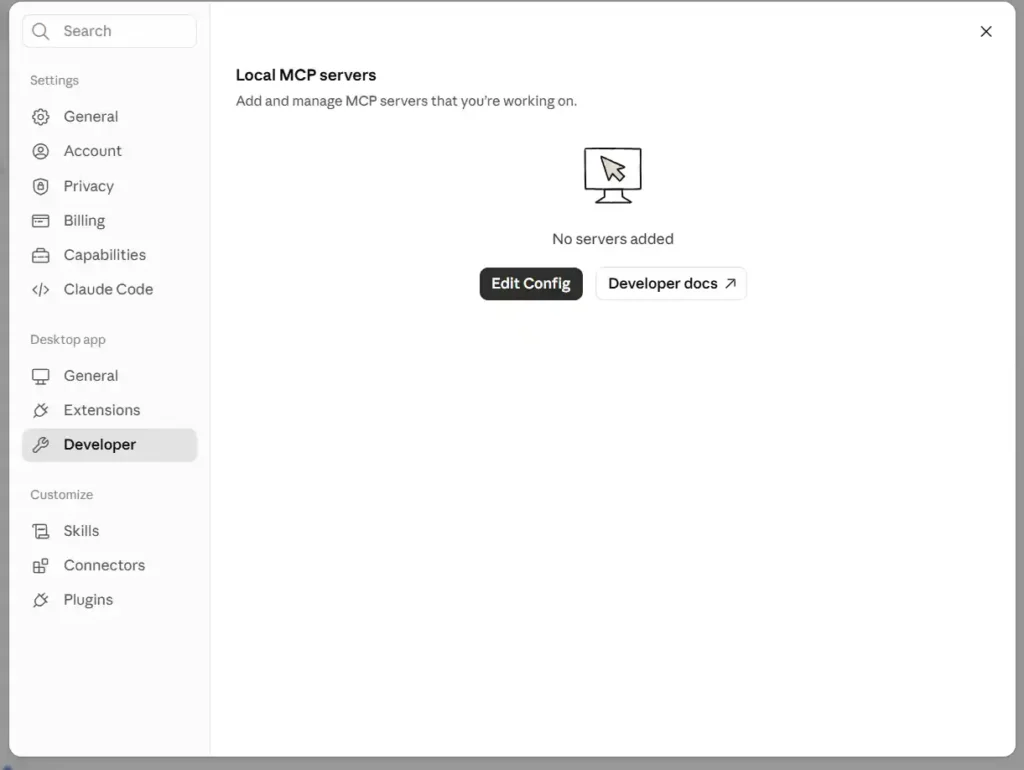
After that the File Explorer window opens with the claude_desktop_config file highlighted, just double-click it to open it up
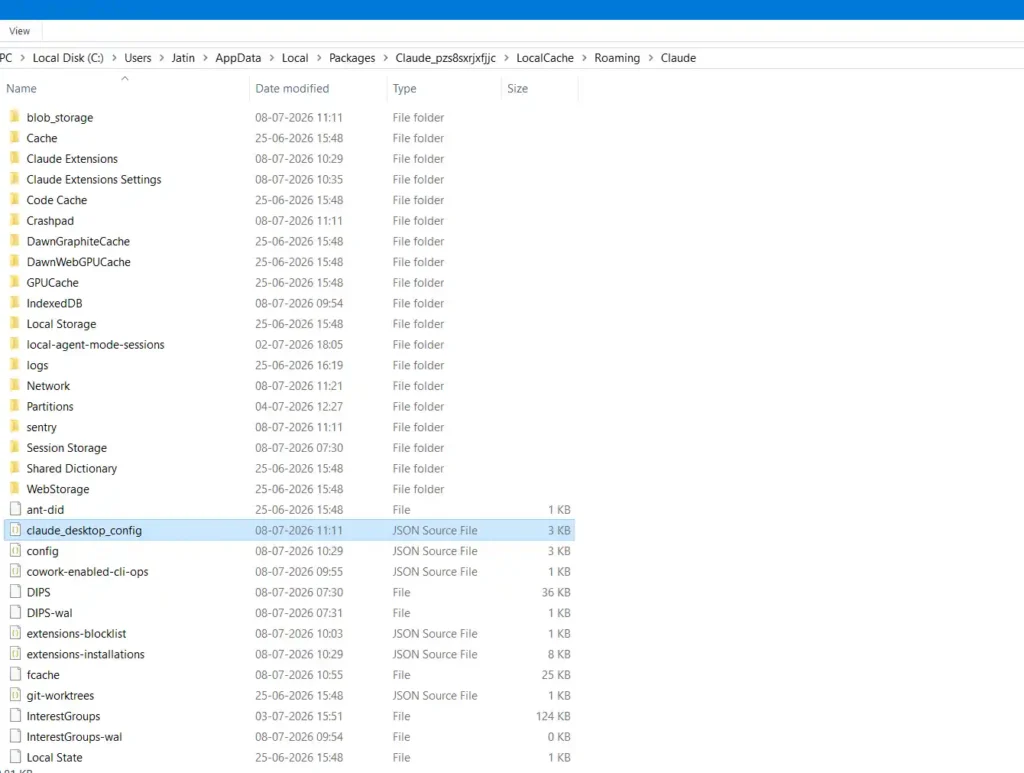
Find the "mcpServers": {}, line in the file, and swap it out with this code snippet:
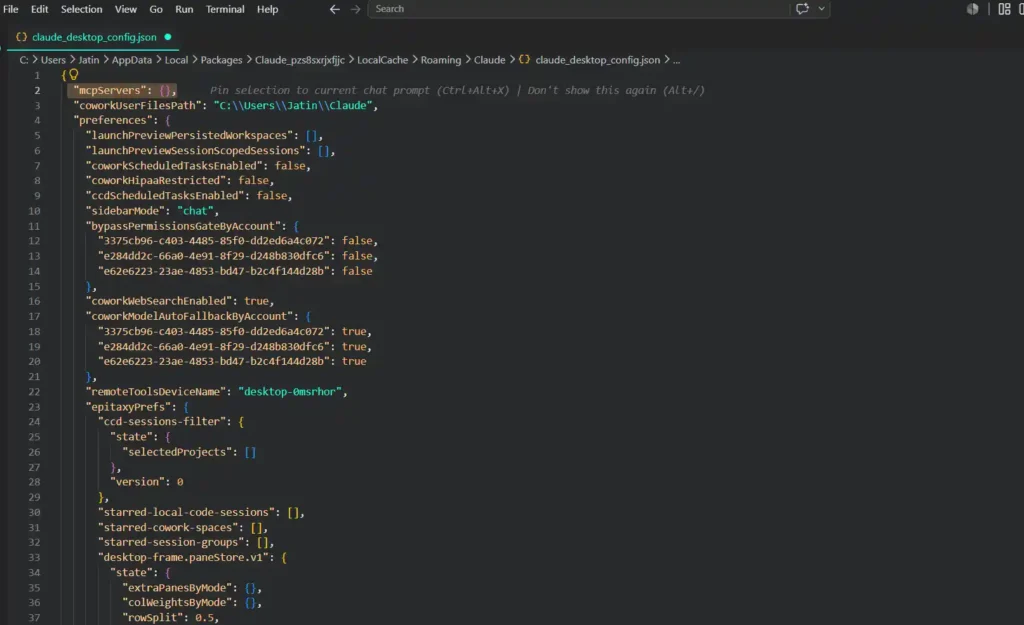
 "mcpServers": {
    "filesystem": {
      "command": "npx",
      "args": [
        "-y",
        "@modelcontextprotocol/server-filesystem",
        "/Users/you/projects/siteA"
      ]
    }
  },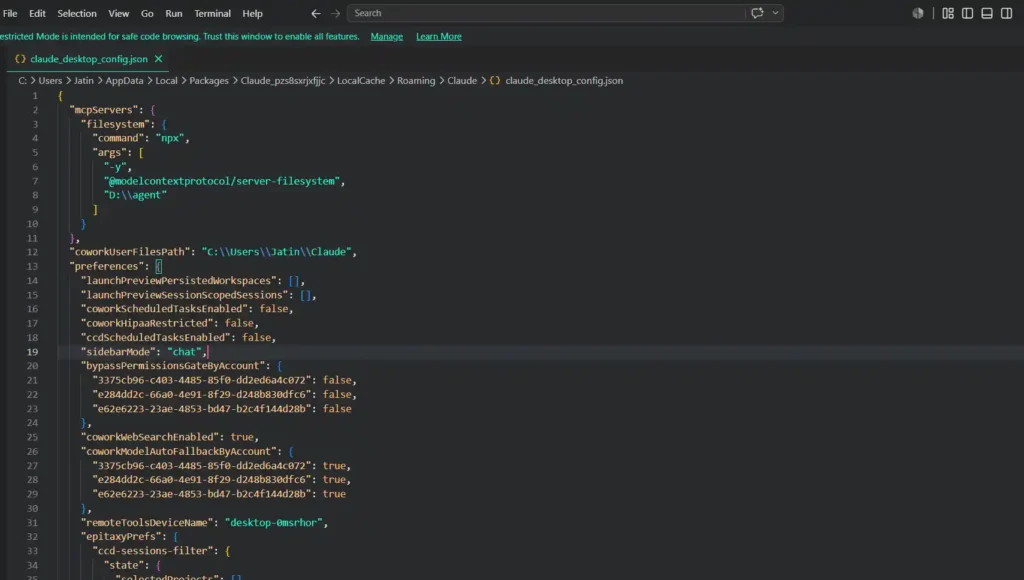
Once you’ve pasted that in, just save the file and close your text editor.
To make the integration work, you need to restart the Claude application and check if it is truly integrated. Go to your settings page and click on developer to verify it. If the filesystem shows “running” in blue color, then integration is on and ready to use
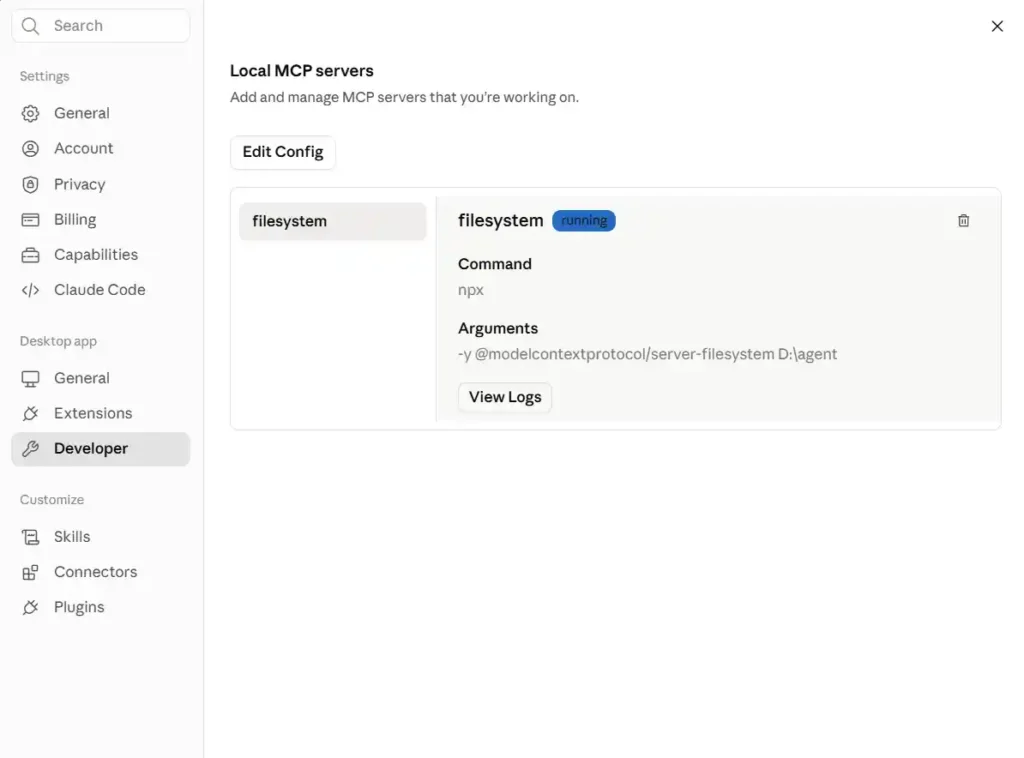
(Note: Make sure to change /to your actual folder path, like from earlier, so Claude knows exactly where to look!).
What each piece does: command runs npx, Node’s package runner; -y auto-confirms the install; @modelcontextprotocol/server-filesystem is the actual server package; everything after that is a folder Claude is allowed to touch. Add more paths as extra array entries if you need multiple directories.
Pros: multiple folders, full control over arguments, works the same way across other MCP clients.
Cons: one misplaced comma breaks the whole config.
Where claude_desktop_config.json Lives
- macOS:
~/Library/Application Support/Claude/claude_desktop_config.json - Windows:
%APPDATA%\Claude\claude_desktop_config.json
Claude Desktop also has a Linux beta now, distributed through Anthropic’s apt repository rather than a config file you’d hand-edit the same way — worth knowing if you’re on Linux and expecting the macOS/Windows steps to line up exactly.
What Claude Can Actually Do With Access
Once connected, Claude can read and summarize files, draft or edit code inside your project, reorganize a messy Downloads folder by file type, or search across a folder for a specific string. Every write action — creating, editing, moving, deleting — asks for your approval first. It doesn’t run unattended.
Keeping This Safe
The server runs with your own user permissions. That means Claude can do anything you could do manually inside the folders it’s pointed at — nothing more, nothing less, but also nothing magically sandboxed beyond that.
Point it at a specific project folder, not your whole C:\ drive or home directory. /Users/you/projects/siteA is a reasonable scope; /Users/you is not, even though both technically work. If you change your mind later, remove the path from the extension’s settings or delete the relevant block from the config file, then restart.
Whether narrower scoping is “enough” security for your situation depends on what’s in those folders — that judgment call is yours, not something a guide can make for you.
Common Errors and Fixes
- Server not appearing: restart Claude Desktop completely, then check the config’s JSON syntax — a missing comma or unescaped backslash is the usual culprit.
- Paths not absolute: relative paths silently fail; always use the full path.
- Node/npx not found: confirm
node --versionworks in a terminal; reinstall the LTS build from nodejs.org if not. - Logs for deeper debugging: macOS at
~/Library/Logs/Claude, Windows at%APPDATA%\Claude\logs.
FAQ
Key Takeaways
Claude Desktop’s free plan isn’t blocking local file access it just ships with none configured. The extension covers most people in a few clicks; manual MCP config gives developers finer control. Either way, scope access to a specific folder, not your whole drive, and you’re set.

No comments yet. Be the first to share your thoughts!