
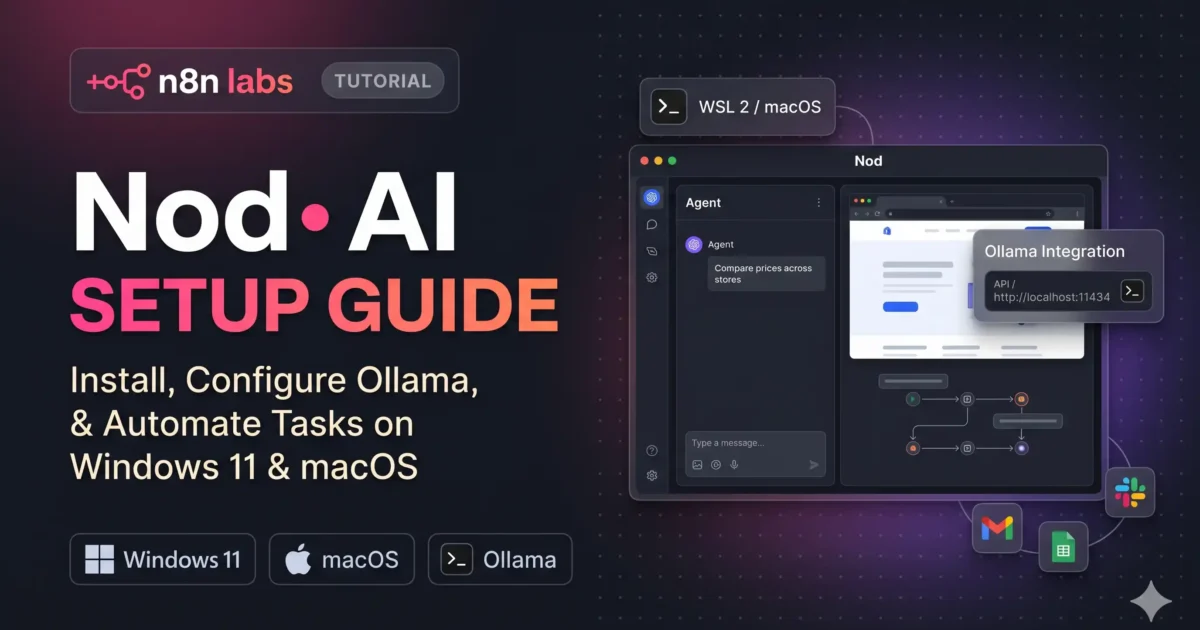

Nod AI is an open-source desktop agent from n8n Labs that can interact with websites, manage files and work with connected applications. Unlike a chatbot that only explains what to do, Nod can use its own browser and computer environment to carry out multi-step tasks. This Nod AI setup guide explains how to install Nod on Windows 11 and macOS, connect an AI model, configure Ollama, and test browser automation.
What Is Nod AI and How Does It Work?
Nod is a personal AI agent released by n8n Labs on November 10, 2026. It combines an AI model with a Linux workspace, a dedicated browser and connections to external applications.
When you give Nod an instruction, the selected model interprets the request, plans the required actions and uses available tools to complete the task.
For example, you could ask it to research three products, compare their prices and prepare a spreadsheet with the results. Instead of simply explaining how to do this, Nod can visit the websites and collect the information itself.
Its main components include:
- AI model: Understands instructions and decides which tools to use.
- Linux workspace: Provides an environment for files and commands.
- Browser: Interacts with websites, forms and online dashboards.
- App connections: Connects supported services such as Gmail, Google Calendar and Slack.
- Vault: Stores saved credentials using encrypted local storage.
Nod is a separate desktop application, not a feature that requires an existing n8n workflow or account.
Nod AI vs n8n: What Is the Difference?
Both projects come from n8n, but their purposes are different.
| Feature | Nod | n8n |
|---|---|---|
| Primary purpose | Personal AI agent | Workflow automation |
| Interaction | Natural-language instructions | Visual workflow builder |
| Website access | Dedicated browser | Integrations and configured tools |
| Best use | Individual computer tasks | Repeatable business processes |
| n8n account | Not required | Depends on deployment |
Nod is useful when you want an agent to handle a task through your browser. n8n is better suited to building structured workflows that run repeatedly.
Nod AI System Requirements
Before downloading the application, check the operating system and hardware requirements.
| Requirement | Windows | macOS |
|---|---|---|
| Operating system | Windows 11 x64 | macOS 14 or later |
| Processor | x64 | Intel or Apple Silicon |
| Virtualization | Hardware virtualization for WSL 2 | Managed by application |
| Local runtime | WSL 2 | Included setup |
| Free disk space | At least 20 GB | Approximately 1.8 GB for app and runtime download |
Windows support is currently a preview. A local Windows installation requires WSL 2. Connecting to an existing Nod server is a different setup and does not require a local WSL runtime.
How to Install Nod AI on Windows 11
The desktop installer is the simplest way to get started without building the application from source.
Step 1: Download Nod
Visit the official website: https://nod.n8n.io
You can also find the installers on the official Nod GitHub releases page.
Download the latest Windows x64 installer, nod-Setup-x64.exe.
Step 2: Run the installer
Open the downloaded executable and follow the installation instructions.
Check that the publisher and download source are correct before proceeding. Windows SmartScreen may display a warning because the application is relatively new.
Step 3: Choose your setup option
When Nod opens, you can choose between two options:
- Get started: Creates a new local assistant.
- Connect to a server: Connects the application to an existing Nod server.
For a first installation, choose Get started.
Step 4: Configure WSL 2
Nod uses WSL 2 to prepare its private computer environment on Windows.
If prompted, allow the application to install or configure WSL. Windows may request administrator permission or a system restart.
Complete these steps before continuing with the initial setup.
Step 5: Complete onboarding
Follow the setup instructions to configure your assistant, connect an AI provider and review privacy preferences.
Once the local environment is ready, Nod opens its chat interface.
Nod AI Setup Guide for macOS
The macOS installation does not require the Windows WSL process.
- Open the official GitHub releases page.
- Download the correct DMG for Intel or Apple Silicon.
- Open the downloaded file.
- Move Nod into Applications.
- Launch the application and complete onboarding.
The minimum supported version is macOS 14.
How to Connect an AI Model to Nod
Nod needs an AI model to interpret instructions and operate its tools.
Open Settings → Models and choose Add Connection. Select an available provider, complete its authentication process and select a model.
Available options include OpenAI, Anthropic, Google Gemini, OpenRouter and compatible model servers.
You can also use supported ChatGPT Plus or Pro account sign-in. This is different from using an API key, which may involve separate usage charges.
Before choosing a model, consider its tool-calling capabilities. A model that can answer ordinary questions may not necessarily be suitable for browser automation.
How to Connect Ollama to Nod AI
If you want to run a model locally, this section of our Nod AI setup guide covers connecting Ollama through its OpenAI-compatible API.
The important requirement is model compatibility. Nod’s documented local-model setup requires tool calling and a context window of at least 64,000 tokens.
For example, the official documentation uses gpt-oss:20b.
Step 1: Install Ollama
Download Ollama from: https://ollama.com
Install it and make sure the service is running.
Step 2: Download a model
Open PowerShell or Terminal and execute:
ollama pull gpt-oss:20bCheck your available memory and storage before downloading a large model.
Step 3: Configure context length
The documented configuration uses:
OLLAMA_CONTEXT_LENGTH=65536 ollama serveAlternatively, configure the context length through the Ollama application settings.
Step 4: Add Ollama to Nod
Open Settings → Models → Add Connection → OpenAI-compatible.
Enter:
http://localhost:11434/v1Leave the API key empty if your local Ollama server does not require authentication.
Select Connect and choose your available model.
Step 5: Verify the connection
You can check the Ollama model endpoint using:
curl http://localhost:11434/v1/modelsIf the connection fails, check whether Ollama is running, whether the endpoint is accessible and whether your selected model supports tool calling.
For more background on local model setup, see our guide on how to use a local LLM on a low-end laptop.
You can also read our Gemma 4 12B setup guide for another example of running AI models locally.
Important: Local model inference does not mean every Nod operation is offline. Web browsing, connected applications and external services may still send information outside your computer.
How Nod AI Browser Automation Works
Nod has its own browser environment rather than automatically controlling your existing Chrome or Edge session.
It can open websites, inspect pages, click buttons, enter text, select options and download files.
Try this example:
“Visit three online stores that sell the same wireless mouse. Compare the listed prices, check whether delivery charges are displayed and prepare a table with product links. Do not purchase anything.”
The instruction defines both the expected output and an action that must not be performed.
Nod can then browse the websites and prepare the comparison. Verify the results because prices and availability can change.
Does Nod use your existing Chrome passwords?
No. Nod does not automatically import your regular browser cookies, tabs or saved passwords.
For websites that require authentication, you can sign in through its dedicated browser and use the Vault to save credentials.
Connecting Gmail, Google Calendar and Other Applications
Nod supports connections to services including Gmail, Google Calendar, Google Drive, Google Sheets, Slack and Notion.
Open the Apps section, select a supported service, authenticate and review the requested permissions.
For a first test, try:
“Find emails from the last seven days containing unanswered client questions. Summarize each request and prepare reply drafts. Do not send any emails.”
This is a useful way to test the integration without immediately authorizing an external action.
Is Nod AI Safe? Privacy and Security Explained
Nod uses local storage for its workspace, database and saved credentials. Its Vault encrypts credentials using operating-system facilities such as Windows DPAPI and the macOS key store.
However, local storage does not mean every request stays local.
| Activity | Data handling |
|---|---|
| Workspace and database | Stored locally |
| Saved credentials | Encrypted local storage |
| Cloud AI requests | Sent to the selected provider |
| Connected applications | Processed through configured connection services |
| Usage analytics | Enabled by default for new owners |
| Conversation traces | Shared only when enabled |
To review the data-sharing settings, open Settings → Privacy & data.
Check both usage analytics and conversation trace sharing. They are separate controls.
If you’re also interested in Windows privacy, read our guide on how to disable AI telemetry in Windows 11.
Avoid connecting accounts with unnecessary permissions, and review consequential actions before approving them.
Is Nod AI Free?
Nod is free and open source under the Apache 2.0 licence. However, model usage can involve additional costs. Cloud AI providers may charge separately for API requests, while local models use your own computer’s resources. It provides usage information and spending controls for supported API-based model connections.
Nod AI Limitations You Should Know
The Nod is a research preview, so it is important to understand its current limitations.
- Windows preview: Windows 11 support is still developing and requires WSL 2 for local operation.
- Computer availability: Local scheduled tasks cannot continue if the computer is asleep or the application has been closed.
- Model compatibility: Not every local AI model supports the tool-calling capabilities Nod needs.
- Website changes: Browser automation can fail when websites change their layouts or introduce CAPTCHA challenges.
- Individual use: The application is designed around an individual owner, not a shared team workspace.
- Approval checks: AI-based trust checks are useful but cannot guarantee that every action is safe.
Frequently Asked Questions About Nod AI
Is Nod AI Worth Trying?
Nod is an interesting option for people who regularly work with websites, emails, online research and repetitive computer tasks.
Its dedicated browser and local workspace make it different from an ordinary chatbot. You can give it a task and let it interact with the environment instead of manually following every instruction.
However, Nod is still a research preview. Model compatibility, computer availability and the reliability of browser actions all matter when deciding whether to use it for regular work.
If you want to explore an open-source personal AI agent, start with a low-risk task, review its permissions and test the results before connecting important accounts.

No comments yet. Be the first to share your thoughts!