
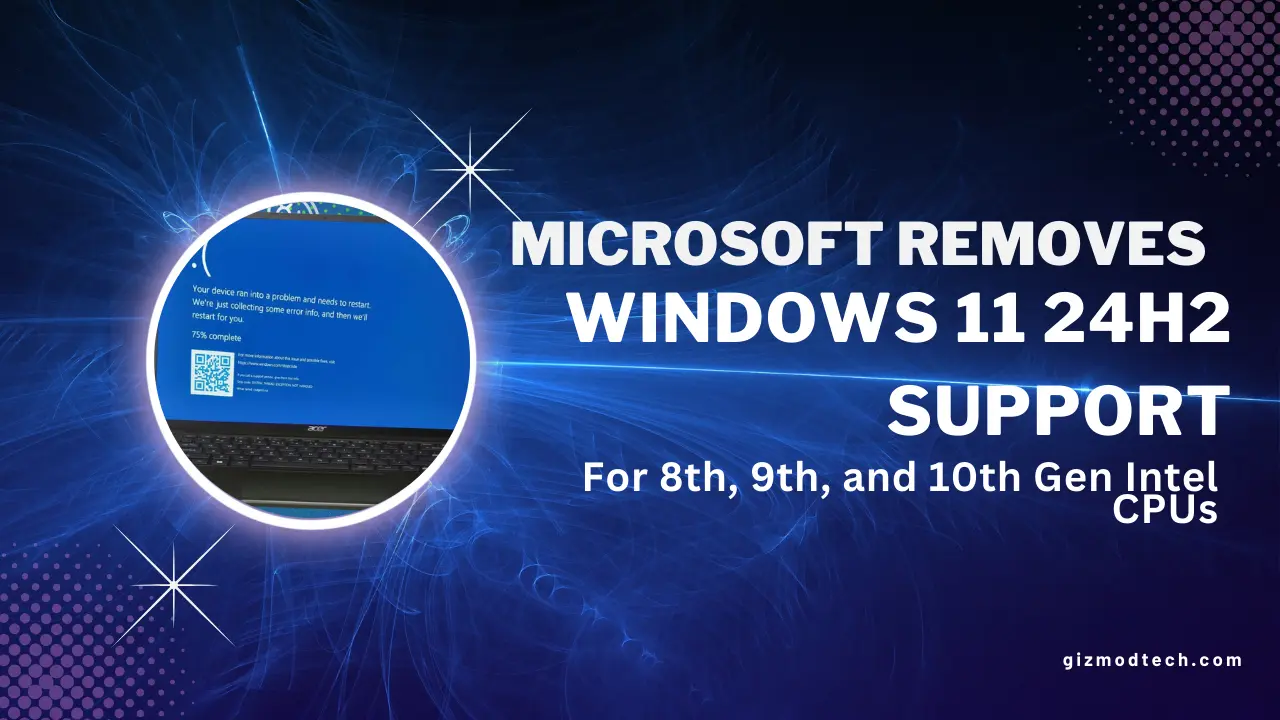

Microsoft’s Windows 11 24H2 processor documentation caused confusion for owners of Intel 8th, 9th, and 10th generation PCs. Some reports suggested that Microsoft had removed support for these processors and that computers using chips such as the Core i7-8700K or i7-10700K would no longer receive Windows updates.
That is not what Microsoft’s documentation says.
The processor list is mainly for PC manufacturers deciding which CPUs can be used in new Windows 11 devices. It does not mean that an existing PC with one of these processors will suddenly stop working after installing Windows 11 24H2.
If Windows Update offers version 24H2 to your computer and the installation passes Microsoft’s compatibility checks, your PC can continue running the update. You should still check your hardware, drivers, and backup situation before upgrading.
Does Windows 11 24H2 Support Intel 8th, 9th, and 10th Gen CPUs?
In practical terms, many existing PCs with Intel 8th, 9th, and 10th generation processors can continue using Windows 11 24H2.
The confusion came from Microsoft’s page titled “Windows 11 version 24H2 supported Intel processors.” That page is written for OEMs and ODMs, which are companies that build and sell new Windows computers.
Microsoft’s separate processor requirements documentation explains that changes to the processor lists are intended for new devices and do not automatically change support for existing Windows installations.
That distinction matters:
- A new PC manufacturer must follow Microsoft’s current hardware requirements.
- An existing Windows 11 PC is not automatically disabled because its processor is older.
- Windows Update remains the most useful way to check whether Microsoft is offering 24H2 to your computer.
- A processor list alone cannot determine the condition or compatibility of an entire PC.
The short answer is simple: Windows 11 24H2 did not turn every Intel 8th, 9th, or 10th generation computer into an unsupported machine overnight.
Which Intel CPUs Are People Talking About?
The discussion mainly involves Intel Core processors from these generations:
- 8th generation Coffee Lake and Whiskey Lake processors
- 9th generation Coffee Lake Refresh processors
- 10th generation Comet Lake and Ice Lake processors
Common examples include:
- Core i7-8700K
- Core i5-8400
- Core i7-9700K
- Core i9-9900K
- Core i5-9400F
- Core i3-10100
- Core i7-10700K
- Core i5-10400
These processors are not identical. A desktop Core i7-8700K, for example, has a different power profile and platform configuration from a low-power laptop chip. The computer’s motherboard, firmware, storage, memory, and drivers also affect the upgrade experience.
That is why checking only the CPU generation is not enough.
How to Check Your Processor
You can find the processor model in Windows by opening:
Settings > System > About
You can also press Ctrl + Shift + Esc to open Task Manager, select Performance, and choose CPU.
The model number usually gives away the generation. An i7-8700K is an 8th generation chip, while an i7-10700K is a 10th generation chip.
If the computer belongs to a business or came from a major manufacturer, check the support page for the exact model. A Dell OptiPlex, Lenovo ThinkCentre, or HP EliteDesk may have firmware and driver requirements that differ from a custom-built PC using the same processor.
Why Did Microsoft Publish a Different 24H2 Processor List?
Microsoft uses processor lists to help manufacturers build new Windows computers that meet its requirements for security, reliability, drivers, and firmware.
A manufacturer preparing a new PC in 2025 or later is unlikely to choose an 8th or 9th generation processor. Those chips are several years old, and newer platforms generally provide better efficiency, firmware support, and access to current hardware features.
That does not mean Microsoft has identified every older processor as incapable of running Windows 11.
The OEM list answers this question:
Which processors may manufacturers use in new Windows 11 devices?
It does not necessarily answer this one:
Will my existing computer with an older Intel CPU stop receiving Windows updates?
Those are different questions, and treating them as the same created most of the confusion around Windows 11 24H2.
What Hardware Does Windows 11 24H2 Check?
Windows 11 compatibility depends on more than the processor. Microsoft also checks requirements such as:
- A compatible 64-bit processor
- At least 4GB of memory
- At least 64GB of storage
- TPM 2.0
- Secure Boot capability
- Compatible firmware
- Supported drivers
Some computers have TPM 2.0 available but disabled in the firmware. On Intel systems, the setting may appear under a name such as Intel Platform Trust Technology, or Intel PTT.
You can check TPM by pressing Windows + R, entering:
tpm.msc
Then look for the specification version. A compatible system should report TPM 2.0.
To check Secure Boot, press Windows + R, enter:
msinfo32
In the System Information window, find Secure Boot State.
Do not change firmware settings casually on a work computer or a system using disk encryption. Changing TPM or Secure Boot settings can create recovery-key problems if the machine is not prepared properly.
Will an Existing PC Receive Windows 11 24H2?
If your PC already runs Windows 11, open:
Settings > Windows Update
Select Check for updates. If Microsoft has made 24H2 available for your hardware, Windows Update may offer it normally.
Microsoft sometimes holds back a feature update because of a known driver or software problem. If 24H2 does not appear immediately, that does not necessarily mean the CPU is unsupported. It may be a temporary safeguard hold.
The safest approach is to wait for Windows Update rather than forcing the installation with an unofficial workaround.
Before upgrading:
- Back up important files to another drive or cloud storage.
- Install BIOS and chipset updates from the computer or motherboard manufacturer.
- Update graphics, Wi-Fi, Bluetooth, and storage drivers.
- Make sure you know your BitLocker recovery key if device encryption is enabled.
- Check whether the software you rely on has known 24H2 issues.
- Keep enough free storage for the upgrade and rollback files.
A major Windows update is a poor time to discover that your only copy of your photos or work documents is on the same drive.
What If Windows Update Does Not Offer 24H2?
First, do not assume the CPU is the reason.
A feature update can be delayed because of:
- A known driver conflict
- A problem with a particular app
- Low storage space
- An incompatible security product
- An outdated BIOS
- A temporary Microsoft safeguard hold
- Windows Update errors
Run the Windows Update troubleshooter and check the support page for your PC model. You can also use Microsoft’s PC Health Check app to review general Windows 11 compatibility.
If your computer is already on Windows 11 but remains on an older release, check the support status of that release. Continuing to use an outdated version indefinitely is not a good solution, especially after security updates end.
Should You Force the Update?
Usually, no.
There are situations where experienced users install Windows manually, but forcing a feature update can bypass compatibility safeguards that Microsoft added for a reason. If a driver or application is known to cause crashes, a forced installation may make the problem worse.
For a personal computer that Windows Update has not yet cleared, waiting is normally the sensible choice. If you must install manually, create a full backup first and confirm that the manufacturer provides current drivers for the system.
Unsupported installation methods also come with fewer guarantees. Microsoft may allow an installation to proceed while warning that the device is not eligible for normal support. That is different from an ordinary upgrade offered through Windows Update.
Will Windows 11 24H2 Make an Older PC Slower?
Not necessarily. An Intel 8th generation desktop with an SSD and 16GB of RAM may still feel perfectly responsive for browsing, office work, streaming, and general use. A laptop with a low-power processor, 4GB of RAM, and a slow hard drive may struggle much more, even if both computers technically meet the requirements.
The upgrade may expose existing weaknesses, including:
- A nearly full system drive
- Too little memory
- Old storage drivers
- A failing hard drive
- Excessive startup software
- Poor cooling
- An outdated BIOS
If Windows becomes slow after an update, the CPU generation is only one possible explanation. Check Task Manager to see whether the processor, memory, disk, or a background process is causing the problem.
What Does This Mean for Someone Buying a Used PC?
This is where the processor list becomes more useful.
A used computer with an Intel 8th, 9th, or 10th generation CPU can still be a reasonable purchase, but do not buy it based on the processor name alone. Check the complete machine.
Before paying, confirm:
- Windows 11 activation
- TPM 2.0 availability
- Secure Boot support
- SSD health
- Battery condition for laptops
- BIOS update history
- Availability of manufacturer drivers
- Memory capacity
- Repair and upgrade options
A cheap business desktop with an 8th generation Core i5, 16GB of RAM, and an NVMe SSD may be more useful than a newer-looking laptop with weak cooling, 8GB of soldered memory, and a worn battery.
The condition and design of the computer matter as much as the CPU generation.
What About AMD Ryzen Processors?
The Windows 11 24H2 discussion is not a general move away from AMD processors.
Microsoft supports many AMD Ryzen, Threadripper, EPYC, and Athlon processors, depending on the exact model and the rest of the system configuration. Newer Ryzen processors are widely used in Windows 11 computers, but not every Ryzen chip has the same support status.
If you are building or buying a new PC, check the exact processor and motherboard combination. Do not assume that the Ryzen brand name alone confirms compatibility.
Should You Replace an Intel 8th, 9th, or 10th Gen PC?
There is no need to replace a working computer solely because it uses one of these processors.
Consider upgrading when:
- Windows Update no longer offers a supported release
- Your PC lacks TPM 2.0 or Secure Boot support
- The manufacturer has stopped providing important firmware updates
- The system cannot handle your workload
- Repair costs are higher than the computer’s value
- You need better battery life, graphics, or gaming performance
If the computer does what you need and receives updates normally, the CPU generation by itself is not a strong reason to discard it.
What Happens Next?
Windows hardware requirements will continue to change. New features may depend on newer security hardware, faster storage, improved power efficiency, or dedicated AI capabilities.
That does not mean Microsoft will announce a sudden cutoff for every older PC. It does mean that older systems will gradually become less attractive to manufacturers and may eventually lose access to new features or future Windows releases.
For now, owners of Intel 8th, 9th, and 10th generation PCs should focus on the actual status of their machine:
- Does Windows Update offer the update?
- Does PC Health Check report a compatibility problem?
- Is TPM 2.0 enabled?
- Is Secure Boot available?
- Does the manufacturer provide current drivers?
- Is the computer still fast and reliable enough for daily work?
Those answers are more useful than a headline claiming that an entire CPU generation has been “banned.”
Final Answer
Windows 11 24H2 has not automatically ended support for existing computers using Intel 8th, 9th, or 10th generation processors.
The confusion came from an OEM-focused Microsoft processor document. That document helps manufacturers decide which CPUs can be used in new Windows 11 devices. It should not be read as a notice that existing PCs with processors such as the Core i7-8700K, i9-9900K, or i7-10700K will stop working.
Check Windows Update and PC Health Check before taking action. If the update is offered normally, back up your files, update your drivers, and install it through the standard Windows process.

No comments yet. Be the first to share your thoughts!