


If you’d told me back in the Windows XP days that I’d one day write about Windows helping my productivity instead of sabotaging it, I’d have laughed hard enough to make my old CRT flicker. Yet here we are in 2026, and these Windows 11 tips and tricks prove the OS has quietly become useful.
After more than a decade covering this stuff, here are 25 Windows 11 tips and tricks I actually use or recommend to friends whose laptops are doing something weird. Some are brand new. Others never get old. A few need specific hardware, and I’ll flag which ones so you don’t waste time hunting for a setting that isn’t there. If you’re setting up a new machine, it’s worth choosing the right laptop first, since a few of these tips depend on the hardware inside it.
New Windows 11 Features From the July 2026 Update
Microsoft ships most new features through monthly updates now, not big yearly overhauls. July’s Patch Tuesday update (KB5101650) is the biggest in months, and these five tips reflect what actually landed — not what a version number implies.
1. Point-in-Time Restore
The one I’d tell a non-techy relative to set up today. It rolls your PC — apps, settings, files — back to a recent working state if something breaks, without a full reset.
How-to: Settings → System → Recovery → look for Point-in-time restore. Requirement: Rolling out with the July 2026 update on Windows 11 Home, Pro, and Enterprise. No special hardware needed.
2. Long-Term Update Pausing
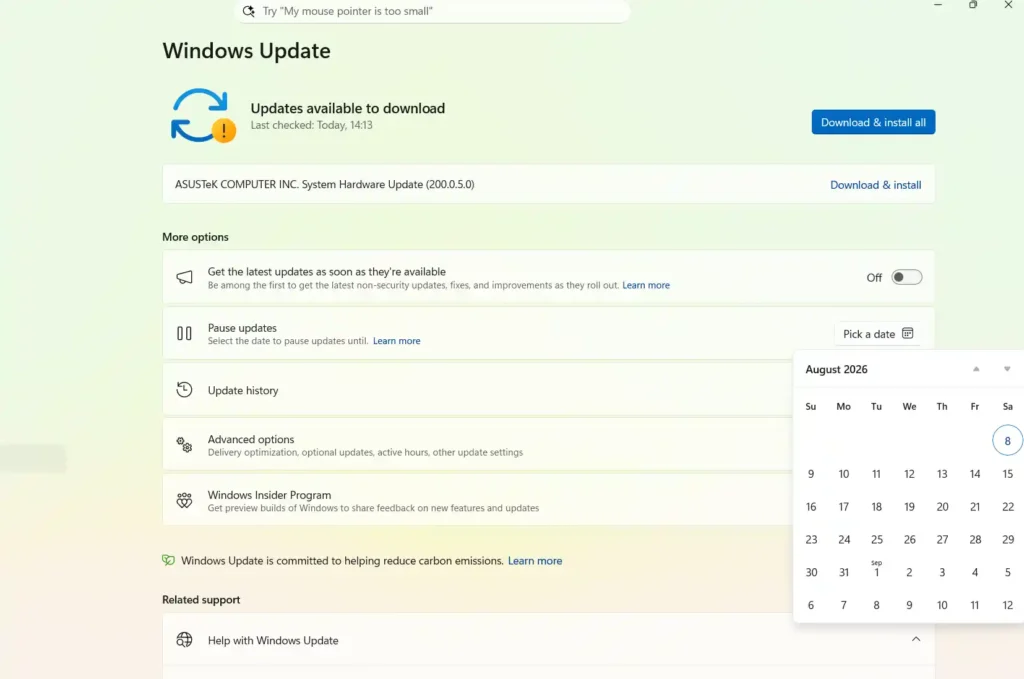
No more counting down 35 days and re-pausing manually. Pick a calendar end date months out, and Windows holds off until then. Worth knowing: Microsoft still pushes critical patches through eventually, so don’t treat this as a permanent off-switch before something important.
How-to: Settings → Windows Update → Pause updates → pick a date. Requirement: July 2026 update or later, any Windows 11 PC.
3. Widgets That Finally Stop Hijacking Your Cursor
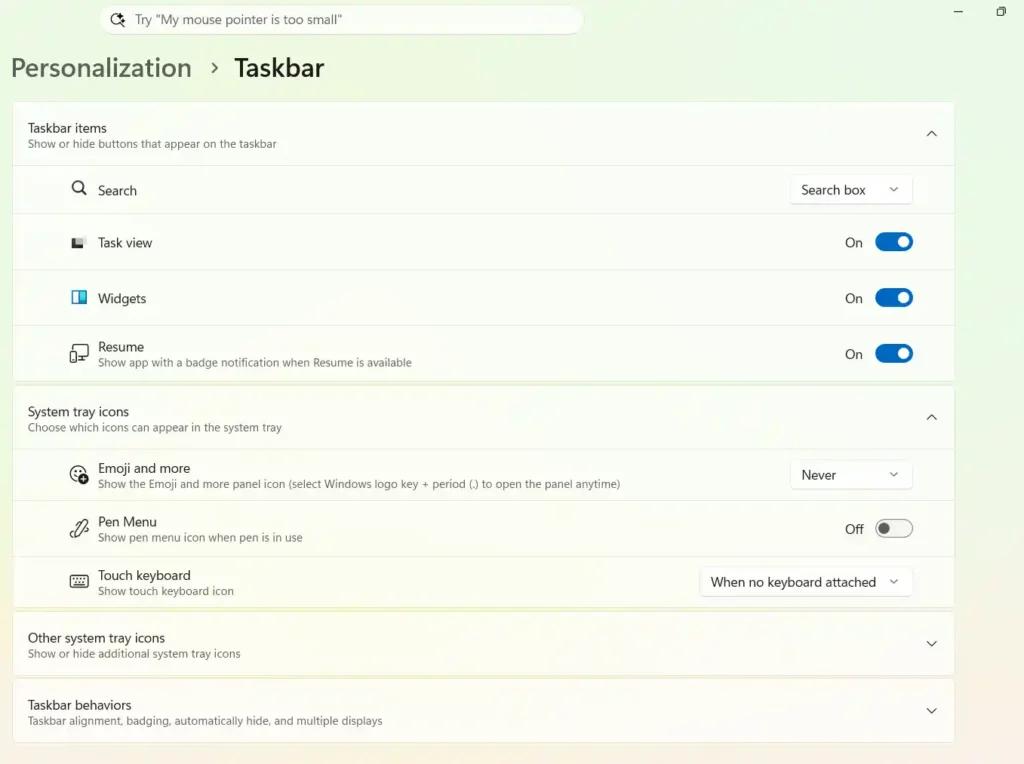
If you’ve brushed the taskbar and had the whole Widgets board slide open uninvited — that’s fixed. Hover-to-open is off by default, and notification badges are toned down.
How-to: It’s on by default after the July update. To tweak it: right-click taskbar → Taskbar settings → Widgets. Requirement: July 2026 update, any Windows 11 PC no AI hardware involved.
4. Screen Tint for Eye Strain
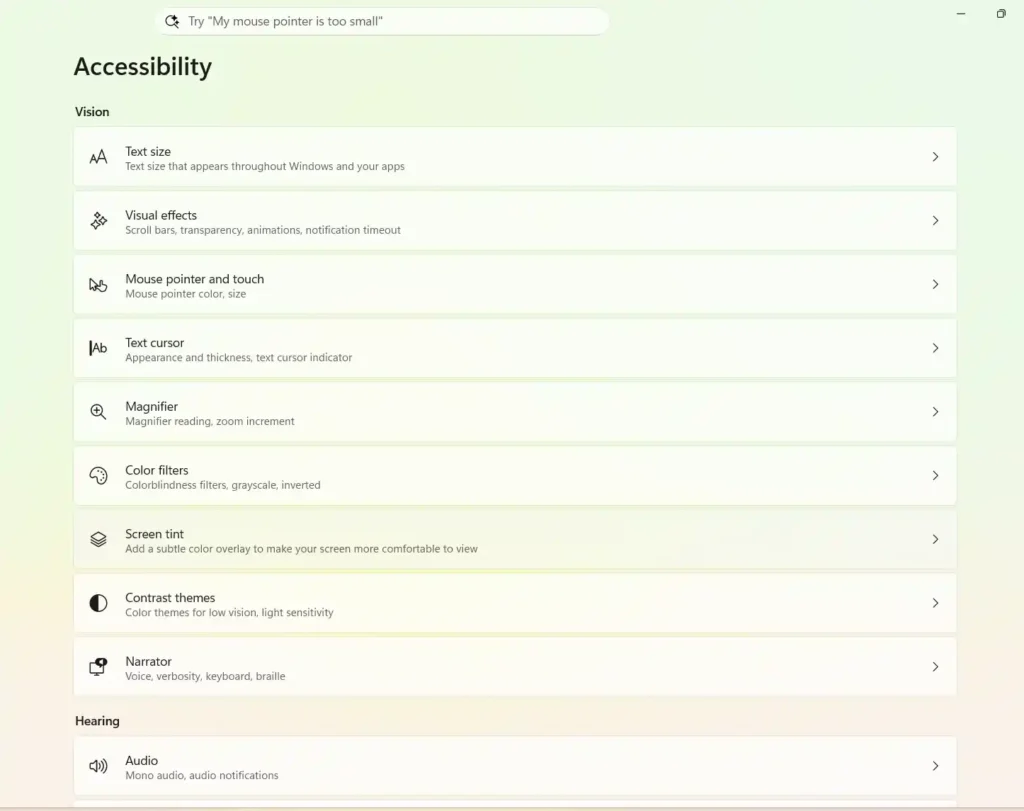
A genuinely new accessibility feature: a full-screen color overlay, separate from Night Light, aimed at cutting visual fatigue.
How-to: Settings → Accessibility → Screen tint. Requirement: July 2026 update.
5. Share Audio to Two Bluetooth Devices
Still one of my favorite small wins — stream the same audio to two headphones so you and someone else can watch something together, no splitter cable.
How-to: Click the volume icon in Quick Settings → tap the arrow next to the slider → Share Audio → pick your two devices. Requirement: Two Bluetooth or audio output devices; works on current Windows 11 builds.
Windows 11 Tips and Tricks for Copilot+ PC Owners
Most “AI feature” roundups gloss over this: Recall, Studio Effects, and the flashier tricks only run on Copilot+ PCs — machines with an NPU rated at 40+ TOPS, 16GB of RAM, and specific Intel, AMD, or Qualcomm chips. If your laptop is a year or two old, none of this may apply. Not a knock on your hardware; it’s just where Microsoft drew the line. If you’d rather these stayed off, there’s a guide for disabling AI telemetry in Windows 11.
6. Background Blur and Auto-Framing on External Webcams
Studio Effects works with external webcams now, not just laptop cameras.
How-to: Settings → Bluetooth & devices → Cameras → Advanced camera options → enable Background effects or Auto-framing. Requirement: Copilot+ PC only.
7. Recall
A searchable, local timeline of your past activity. Genuinely useful if you lose track of “that document from Tuesday” — but it has real prerequisites people skip.
How-to: Launch Recall from the Start menu or taskbar → use the timeline slider at the top, or type a keyword to jump straight to past activity. Requirement: Copilot+ PC, plus Secure Boot, BitLocker (or Device Encryption), and Windows Hello sign-in enabled. Skip any of those and it won’t set up.
8. Click to Do
Highlight text or images on screen and act on them instantly — copy, search, or send to an app — no window switching.
How-to: Open the Click to Do tutorial from Settings and follow along. Requirement: Copilot+ PC.
9. Copilot for Document Summaries
Genuinely handy for long PDFs or reports you don’t have time to read.
How-to: Press Win + C or click the Copilot icon → “Summarize this document.” Requirement: Copilot enabled on your Microsoft account; works on standard Windows 11 PCs, not just Copilot+ hardware.
Hidden Windows 11 Features That Save Time
10. Efficiency Mode in Task Manager
Throttles a resource-hungry background process without killing it — good for laptop battery life.
How-to: Ctrl + Shift + Esc → right-click the process → Efficiency mode.
11. God Mode Folder
An old classic that still works and surprises people: one folder, every system setting Windows has.
How-to (legacy feature, still works): Create a new folder, rename it exactly: GodMode.{ED7BA470-8E54-465E-825C-99712043E01C}
12. Different Wallpaper Per Virtual Desktop
Handy for keeping work and everything else visually separate.
How-to: Win + Tab → New desktop → right-click the thumbnail → Choose background.
13. Snap Layouts (and Snap Groups)
Still one of the most underused window-management tools in Windows. The layouts have been around since launch, but Snap Groups is the part people miss — hover an app’s taskbar icon and Windows offers to snap the whole group back into place.
How-to: Hover over a window’s maximize button and pick a layout. To restore a saved group later, hover over the app’s taskbar icon.
14. Clipboard History
Stops the “wait, where did I copy that link” panic mid-meeting.
How-to: Win + V → toggle Clipboard history on.
15. Focus Sessions
Built-in Pomodoro timer with optional Spotify integration.
How-to: Open the Clock app → Focus sessions → link Spotify if you want.
Windows 11 Productivity Tips for Work
16. Live Captions With Translation
Useful in meetings with non-native speakers, or when you’re half-listening with headphones off.
How-to: Win + Ctrl + L to start Live Captions → click the settings gear → pick a translation language.
17. Adaptive Power Mode
Windows adjusts performance automatically instead of manually toggling battery saver.
How-to: Settings → System → Power & battery → Power mode → Adaptive. Requirement: Laptop or tablet.
18. Sudo, Right in the Terminal
If you’ve used Linux or Mac, you know the drill: type sudo before a command and it runs elevated, no separate admin window. Windows finally has its own.
How-to: Settings → System → For developers → toggle Enable sudo on. Prepend sudo to any command, like sudo ipconfig /flushdns. Requirement: Windows 11, version 24H2 or later.
19. OneDrive Known Folder Move
Backs up Desktop, Documents, and Pictures automatically — the single best “I lost everything” prevention.
How-to: Right-click the OneDrive icon → Settings → Sync and backup → Manage backup.
20. Win + X Power User Menu
Still the fastest way to reach Device Manager, Disk Management, or Settings without hunting. If you like shortcuts like this, a few Microsoft Office keyboard shortcuts are worth learning too — the savings stack up fast.
How-to (long-standing shortcut): Win + X.
Windows 11 File Explorer and Display Tricks
21. File Explorer Tabs
No more fifteen separate Explorer windows cluttering your taskbar. If tabs like this help, the same idea applies to your browser — see how to use Google Chrome like a pro for tab tricks that pair well with this one.
How-to: Win + E → click the + at the top to open a new tab.
22. Native 7z, TAR, and RAR Support
File Explorer can open and extract ZIP, 7z, TAR, and RAR on its own — no more installing WinRAR to peek inside a file. Note: you can create ZIP, 7z, and TAR natively, but not RAR — that format’s licensing still needs a third-party tool.
How-to: Right-click a file or folder → Compress to → Additional options for format/compression level. To extract, right-click an archive and choose Extract all.
23. Custom Widgets Boards
Now that Widgets are quieter by default, it’s worth organizing them — separate boards for work versus personal.
How-to: Settings → Personalization → Widgets → Add new board.
24. Multi-Monitor Memory
Windows now reliably remembers where your windows were when you reconnect a monitor — a small thing that used to ruin my mornings.
How-to: Settings → System → Display → Multiple displays → enable Remember window locations based on monitor connection.
25. Drag-and-Drop Quick Access
Still the fastest way to keep your most-used folders one click away.
How-to: Drag any folder into the Quick Access section of File Explorer.
Final Word on These Windows 11 Tips and Tricks
Not everything here will work on your machine — that’s just how Windows 11 splits features now. July 2026 items work on any PC, no special chip required. Copilot+ items need specific AI hardware — check for the badge first. Everything else has just been sitting in Windows, quietly underused.
Pick the five or six Windows 11 tips and tricks that match your day-to-day, set them up once, and move on. That’s really the whole trick.

No comments yet. Be the first to share your thoughts!