
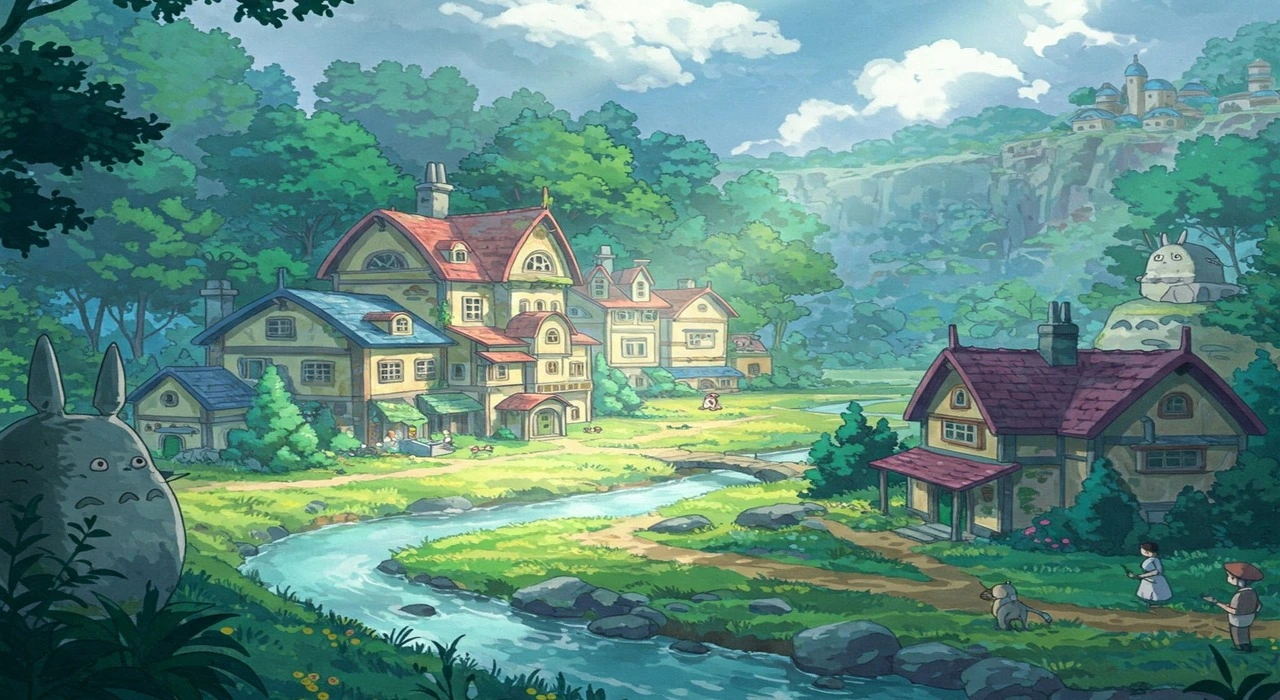

Short answer: Use a free image generator for a first draft, then refine the composition and paint over mistakes in Krita. Describe visual qualities such as soft gouache texture, expressive faces, warm natural light, detailed backgrounds, and quiet storytelling rather than asking for an exact copy of a studio, film, or artist. Free services are usually rate-limited, and their terms and privacy settings can change.
What “Ghibli-inspired” should mean here
Studio Ghibli is a company and a body of copyrighted work. “Ghibli style” is often used online as shorthand for a particular combination of traits: hand-painted backgrounds, gentle color transitions, expressive but simple character design, natural light, whimsical details, and a strong sense of place.
This guide uses Ghibli-inspired and hand-painted anime-inspired to describe those broad visual characteristics. It does not promise an exact imitation of Hayao Miyazaki, another living artist, or a particular film. A better prompt names the qualities you want and gives the model an original subject, setting, and mood.
The result is not automatically safe to sell, free of third-party rights, or eligible for copyright protection. Treat the generated image as a draft that needs human judgment and editing.
Choose the right free route
There is no single best free tool. Pick the route that matches your priorities.
| Route | Best for | What to expect |
| — | — | — |
| ChatGPT image generation | Fast concept sketches and conversational revisions | Availability and image limits vary by plan and account. Check the current ChatGPT Free Tier FAQ. |
| Microsoft Designer Image Creator | A simple browser workflow and quick variations | The free service uses monthly credits and service limits. Read the current Microsoft Designer terms, especially the personal-use and rights sections. |
| Krita | Painting, compositing, cleanup, and adding human decisions | Krita is free and open source. Download it from Krita’s official site. It does not generate a finished image by itself, but it is the most useful free finishing tool in this workflow. |
| ComfyUI locally | Privacy, repeatable workflows, and no hosted per-image quota | ComfyUI runs open models on your own computer. Setup is more involved, model licenses differ, and a capable GPU is helpful. |
Free tiers are not the same as free software. A hosted generator may require an account, store prompts or uploads, display ads, limit commercial use, or change its allowance without notice. Read the provider’s current terms before using the output in a client project, product, advertisement, or monetized site.
Before you generate: define the image
A useful prompt starts with a visual brief, not a list of famous names. Decide these elements first:
- Subject: Who or what is shown? Use original characters or people whose photos you have permission to use.
- Action: What is happening? A child repairing a bicycle is more useful than “a beautiful anime girl.”
- Place: Give the scene a specific location, season, and time of day.
- Composition: Say whether it is a close portrait, wide establishing shot, overhead view, or a character walking through the foreground.
- Materials and color: Ask for gouache-like brush texture, colored-pencil edges, muted greens, warm ochres, or misty blue shadows.
- Light and mood: Try late-afternoon window light, overcast spring light, or lanterns reflected in wet pavement.
- Technical needs: Choose an aspect ratio and leave room for a crop, headline, or social caption.
- Constraints: Request clean hands, one character, no logos, no readable text, and no watermark when appropriate. Do not expect every generator to obey these perfectly.
A reusable prompt structure
Create an original hand-painted anime-inspired illustration of [subject] [action] in [specific setting].
Wide [aspect ratio] composition, [camera angle], [foreground/middle ground/background].
Soft gouache and watercolor texture, subtle linework, natural [lighting],
[limited color palette], atmospheric depth, expressive but understated faces,
small environmental details that support the story. Leave [empty area] for [intended use].
No logos, no readable text, no watermark, no extra fingers, no duplicate characters.
Example prompt
Create an original hand-painted anime-inspired illustration of a young bicycle mechanic
crossing a narrow footbridge while carrying a basket of oranges. The bridge is above a
slow forest stream beside a small mountain village in early autumn. Wide landscape
composition, eye-level view, tall reeds in the foreground, village roofs in the distance.
Soft gouache and watercolor texture, delicate ink lines, warm late-afternoon light,
muted moss green, burnt orange, cream, and slate blue, gentle atmospheric haze,
expressive but understated face, a calm sense of wonder. Leave clean space in the upper
left for a short title. No logos, no readable text, no watermark, no duplicate people.
Notice what the prompt does not do. It does not request a frame from a named film or tell the model to copy a living artist’s signature. It gives the generator enough information to make an original scene with a related mood.
Step-by-step workflow
1. Generate several rough concepts
Open your chosen free-tier generator and submit the prompt. Save the prompt, date, tool, and selected output with the image. Generate a small set of variations instead of repeatedly trying to rescue one weak composition.
Compare the options for silhouette, subject placement, readable action, background depth, and unwanted artifacts. Choose the image with the clearest story, not necessarily the one with the most detail.
Free image limits may be separate from ordinary chat or design credits. Do not rely on old articles promising a fixed number of daily images. The limit shown in your account is the useful one.
2. Revise one problem at a time
Use plain, targeted instructions:
- “Keep the bridge, character, and color palette. Move the character farther left and show both feet.”
- “Remove the extra person near the house. Preserve the trees and evening light.”
- “Replace the unreadable sign with a blank wooden board. Do not add text.”
- “Keep the face and clothing. Simplify the background and leave more empty space above.”
Changing five things at once makes it hard to tell which instruction helped. If the generator cannot preserve the subject, export the best draft and continue in an editor.
3. Fix the image in Krita
Open the chosen image in Krita and work non-destructively where possible:
- Duplicate the imported layer and keep the original hidden as a reference.
- Crop to the actual use case, such as a banner, phone wallpaper, or square post.
- Paint over malformed hands, eyes, jewelry, and repeated background objects with a small opaque brush.
- Use separate layers for sky, atmosphere, foreground texture, and color correction.
- Reduce distracting detail with a soft brush or a low-opacity color layer.
- Add a subtle paper, watercolor, or grain texture only when you have permission to use it. Check the texture’s license rather than assuming “free download” means unrestricted.
- Add titles and logos yourself with a normal text tool. Do not ask the image model to render important words.
- Export a PNG for transparency or a high-quality JPEG for a smaller web file. Keep the editable project file and a note of the generator and prompt.
The finishing pass is not optional for a professional result. Generators commonly produce inconsistent hands, lettering, architecture, perspective, and character details. A human edit also makes the final image more clearly your own creative arrangement.
4. Prepare the image for the web
Resize the final file to the largest size the page actually needs, convert to a web-friendly color profile, and use descriptive alt text. Alt text should describe the image, not repeat the prompt or claim that it is an official Studio Ghibli image. For example: “Hand-painted anime-inspired scene of a bicycle mechanic crossing a forest bridge at sunset.”
Keep the original high-resolution file and the edited source file outside the public upload folder. Strip location metadata from personal photographs before uploading them to a hosted service or publishing them.
A local, private option with ComfyUI
If you have a reasonably capable computer and want prompts and source images to stay on your machine, consider ComfyUI. Its official documentation describes it as an open-source node-based interface and inference engine that can run locally. The initial setup involves installing the application, a compatible model, and hardware-specific dependencies. Model downloads can be several gigabytes, and CPU-only generation may be impractical.
A local workflow usually looks like this:
- Install ComfyUI from the official download or official documentation.
- Download a model from its original project page or a reputable model host.
- Read that model’s license before making commercial work. The ComfyUI license does not automatically license the model weights or add-on adapters.
- Start with a text-to-image workflow and a moderate resolution.
- Use image-to-image or inpainting for controlled changes rather than regenerating the whole scene.
- Save the workflow file, model name, version, and settings with the output.
“Local” improves privacy because the generation can run without sending the prompt or image to a hosted generator after setup. It does not make the source image lawful to use, remove model-license obligations, or guarantee that the output is unique. Do not install random model files or custom nodes without checking their source and security implications.
Copyright, likeness, and licensing cautions
Keep these checks in your process:
- Do not use someone else’s photograph without permission. A public social-media image is not automatically available for transformation.
- Be careful with recognizable people. Consent, publicity, privacy, defamation, and platform rules can apply even when copyright is not the issue.
- Avoid logos, characters, and film frames when you need a commercial asset. A prompt can produce a recognizable character or trademark by accident, so inspect the result.
- Read the generator’s current terms. For example, OpenAI’s Terms of Use address ownership, responsibility for inputs and outputs, similar outputs, and the provider’s use of content. Microsoft’s Designer terms include important restrictions and disclaimers, including that Microsoft does not guarantee that generated content avoids third-party rights.
- Check model and asset licenses separately. “Open source,” “free,” and “commercially usable” are not interchangeable. A brush, texture, checkpoint, LoRA, font, or stock photo can each have different conditions.
- Do not promise copyright protection. Laws differ by jurisdiction, and purely machine-generated material may receive limited or no copyright protection. Your original briefing, selection, composition, editing, and painting may be relevant, but only a qualified local lawyer can advise on a specific work.
- Keep records. Save the prompt, source images and permissions, tool name, model and version, edits, and licenses. This makes later review possible.
There is no guaranteed “copyright-safe” prompt. Risk reduction comes from original subject matter, permitted inputs, careful review, compliant tools, and meaningful human editing.
Privacy and account safety
Before uploading a portrait, family photo, customer image, unpublished design, or confidential document, check:
- Whether the service stores prompts and uploads
- Whether content may be used to improve the service
- Whether there is a way to opt out or delete history
- Where the provider processes the data
- Whether staff or contractors may review flagged content
- Whether the account is personal or business-managed
Crop or blur unnecessary faces, signs, addresses, documents, and metadata. For confidential work, use an approved business service with suitable contractual controls or a properly configured local workflow. Never paste passwords, private keys, medical records, or unreleased client material into a public image generator.
Common problems and practical fixes
The result looks generic
Replace broad style labels with concrete visual information. Specify the setting, light, materials, palette, camera angle, and emotional action. Give the image a small story.
Faces or hands are wrong
Generate a wider composition with the hands less prominent, ask for a simpler pose, then repair the selected result in Krita. Inpainting can help, but inspect every revision at full size.
Text is gibberish
Do not depend on the generator for important lettering. Leave blank space and add the text in Krita, Canva, or another editor with a font you are licensed to use.
The character changes between revisions
Keep the seed or reference-image controls when the tool provides them. Make smaller edits, or switch to an image-editing or inpainting workflow. No free hosted tool guarantees character consistency.
The generator refuses the prompt or runs out of credits
Remove unnecessary references to protected characters or real people, simplify the request, and wait for the account’s reset. Do not try to bypass rate limits or safety systems. A local workflow is an alternative only if you can meet its hardware, model, and license requirements.
The image is too detailed and difficult to read
Reduce the palette, simplify the background, increase separation between foreground and subject, and add atmosphere on a separate layer. More detail is not the same as better visual communication.
A compact checklist
Before publishing a Ghibli-inspired image, ask:
- Is the subject original, or do I have permission to use it?
- Does the prompt describe visual qualities instead of requesting an exact imitation?
- Did I inspect hands, faces, signs, logos, and background artifacts at full size?
- Did I edit or paint over important defects?
- Have I read the current tool, model, font, brush, and texture licenses?
- Am I making a claim about ownership or copyright that I cannot support?
- Did I avoid uploading confidential or unnecessary personal data?
- Did I save the prompt, source permissions, settings, and editable file?
The most reliable free workflow is simple: make an original brief, generate a few rough options, select for composition, and finish the image yourself. The result may have a gentle hand-painted anime feel without pretending to be an official work or an exact copy of any artist.

No comments yet. Be the first to share your thoughts!